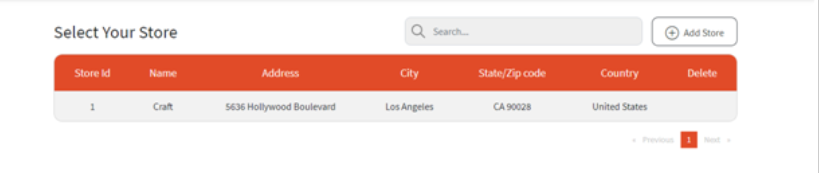
- Our tool is a powerful platform designed to help businesses deliver premium customer experiences at every interaction, while improving operational efficiency for both customers and internal teams across industries.
- Let's get you started
- Go to: retailboon.ai
- User should see the image below on the webpage.
- Registered users can sign in with their credentials.
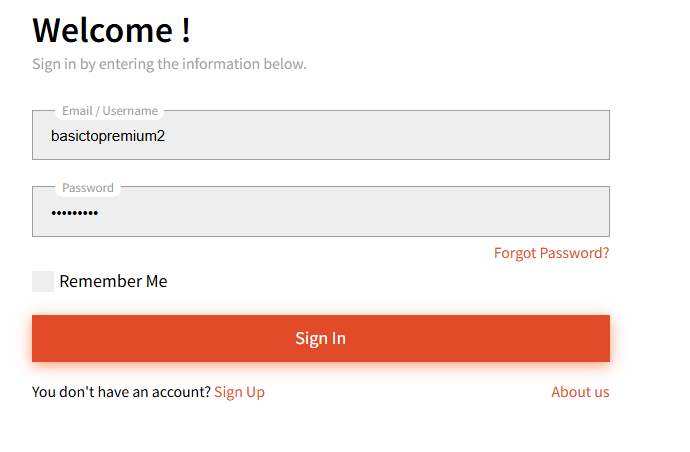
- New users can use the Sign up button to register themselves.
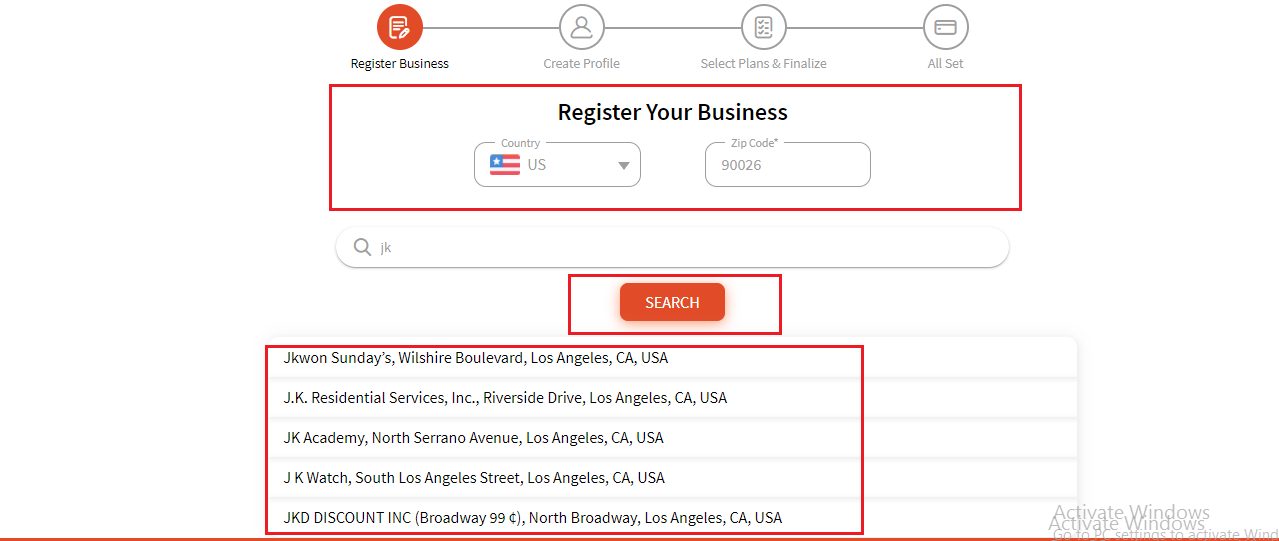
- Clicking the Sign up button will redirect user to the Register Your Business page.
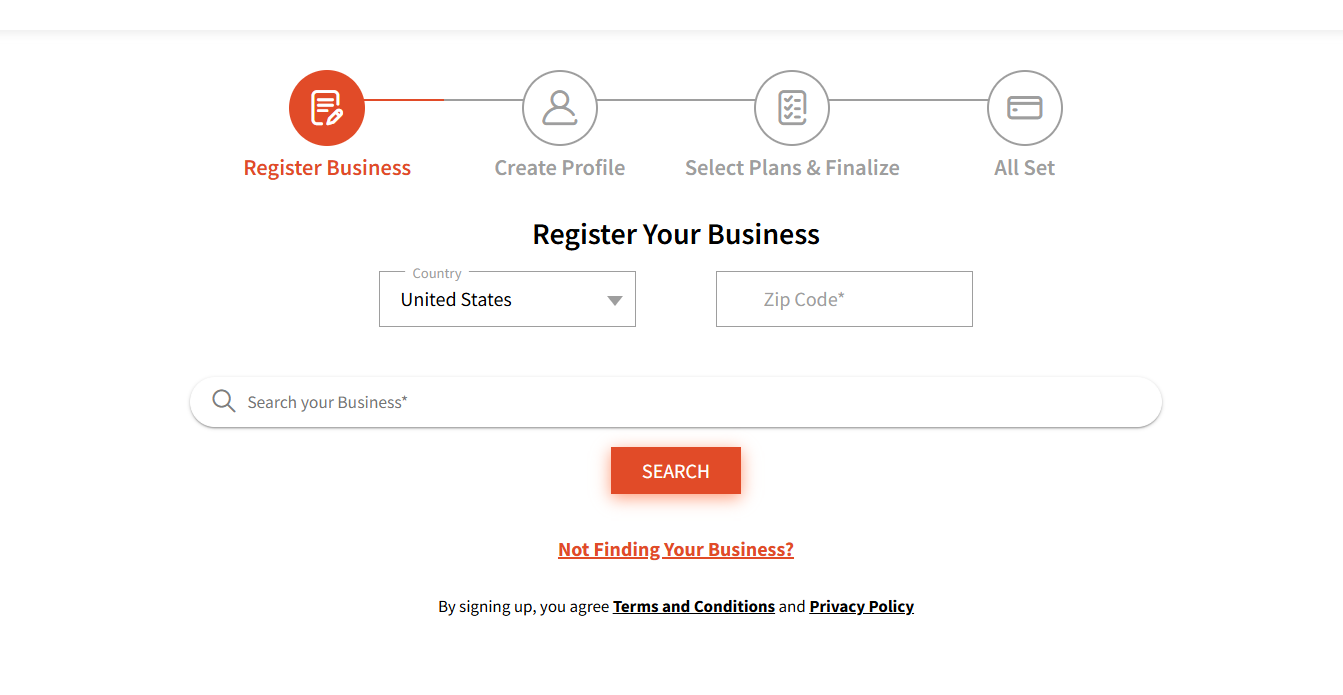
- If user's business is not registered or cannot be located by search, user can click on Not Finding? button.
- When user clicks on the Not Finding link, the Add Business page will be show.
1. Add Business
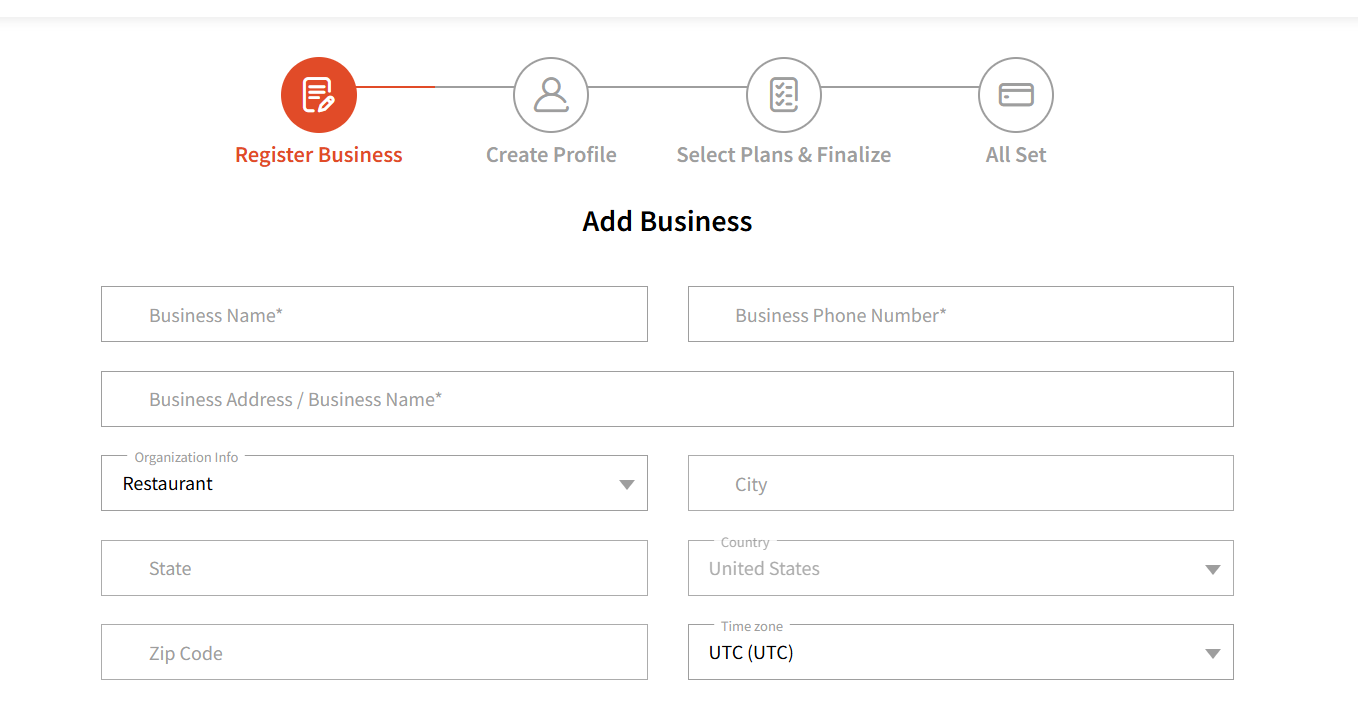
- User can enter the business details in this form.
- Once user saves the form, it will redirect the user to the Create business Login screen.
2. Create Business Login
- Enter personal detail and click on create my account button.
- User will receive activation code on registered email from info@retailboon.ai
- If your business is already registered, it will pop-up when you search for it.
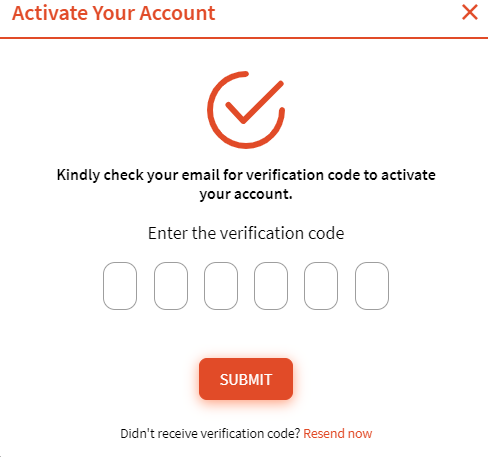
- When you click on Create My Account, enter the activation code pop-up will open where you can enter the code you received.
- You can resend the code in case you do not receive it on the first attempt.
- Entering the valid activation code and clicking on the submit button will redirect the user to the plan & payment page.
- User can select the annual plan according to their needs.
Once user picks the preferred plan, the system will also ask if the user would like to get an add-on plan. Based on user selection, the next page will show a summary of the user selected plans and their due amount:
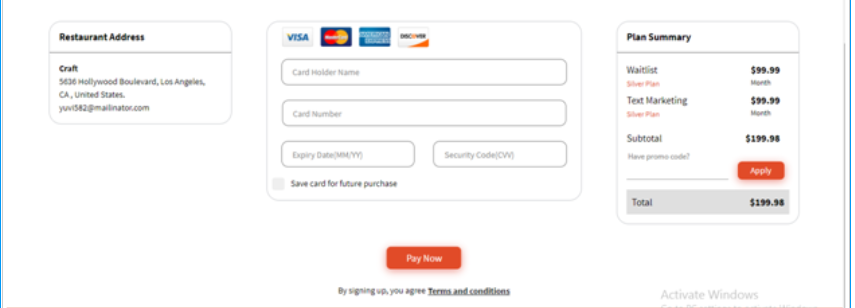
- User can enter a Promo code to apply any discounts (if applicable).
Once payment is processed, it will redirect user to the Thank you page to confirm the payment.
When user clicks on Continue button, it will allow user to click on the store to get started on Retailboon!