
- You can add your staff members through this tab.
- The forms will look different based on the organization type.
For the following organizations
1. Food and Dining
2. Food and Drinks
3. Retail
4. Leisure and Entertainment
The form will not have an option assign a Service.
For the following organizations:
1. Beauty and Personal Care
2. Transportation
3. Professional Services
4. Charities, Education, Membership
5. Home and Repair
6. Fitness
7. Healthcare
8. Pet Care
9. Casual Use
The form will have an additional option where you can assign the staff member 'Services'
Personal Details:
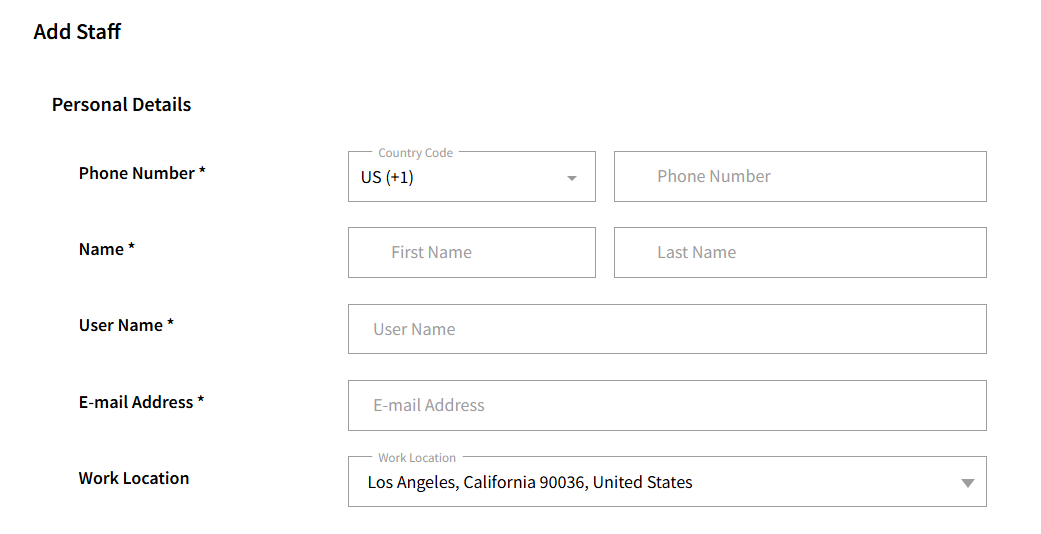
Here you can add the staff member details. The staff member will be notified on their email to sign up and create an account once you have added them.
Work Location lets you pick the store you want this staff member to be added to. If you have multiple stores under one account, those stores will show here.
Work Details

Here, you can select the Role for the staff member. The staff permissions vary as per the type of Role selected. You can update permissions under 'Staff Permissions' located in My Account.
You can also select the Employee Type that will show to your guests when booking through the Reservation Link.
Under Working Days, you can select the days that the staff member works.
You can also select the Calendar icon located at the end of the line to apply the same time to all the other days of the week.
Please note: A staff member’s availability does not currently follow the schedule set here. We are actively working on enhancing the reservation flow so that availability aligns with each staff member’s assigned schedule and reservations.
Also note, for now, staff members will appear as available based on the business hours and any off days you have configured.

Once you have added the staff member, the staff member will be sent an email to sign up and create an account. At this time, the status will be set to 'In Progress'
Once the staff member activates the account, the status on the Staff Listing page will change to 'Active'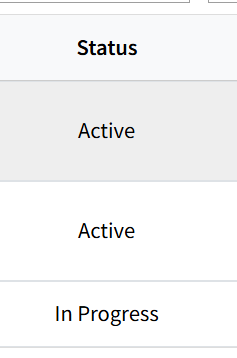
Once the staff is active, they start showing in the Reservation Link and can also be assigned when adding a guest through the Dashboard.
You can manage your staff members under the 'Staff' page that shows the entire list.
Scheduling Calendar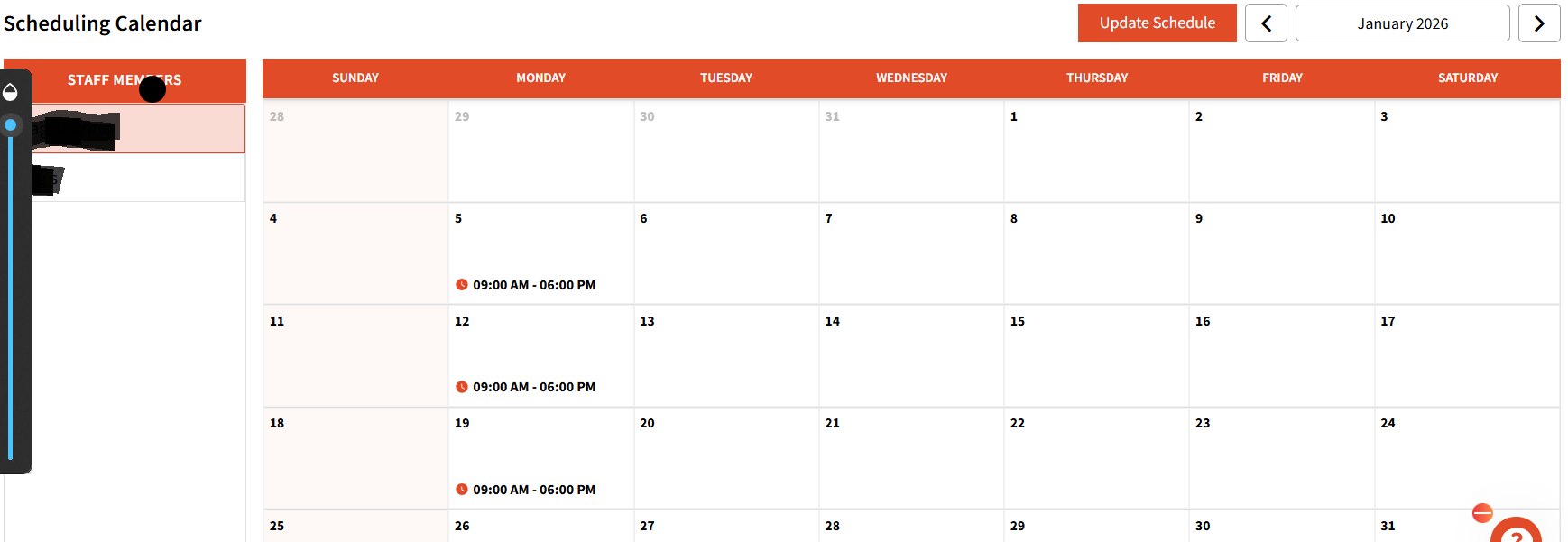
Clicking the Scheduling Calendar on the Staff page will take you to each staff member's schedule for the selected month.
You can select the staff member whose schedule you want to update by clicking Update Schedule. This will open the weekly schedule, where you can make changes as needed.
Note: Any changes made here will apply to the entire year. Once a schedule is set, it remains in effect for the full year and will automatically carry over to the next year unless updated. 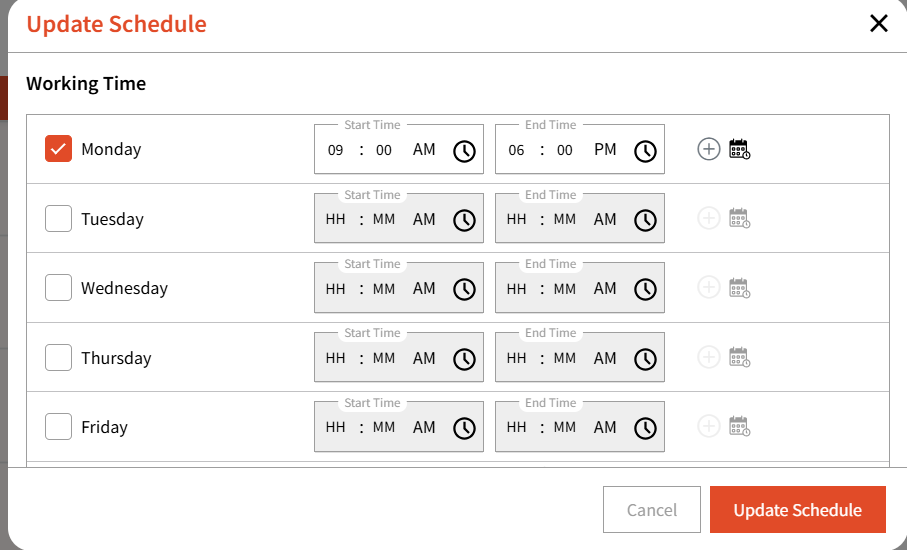
You can also update individual days by clicking on the specific day you want to modify in the schedule. 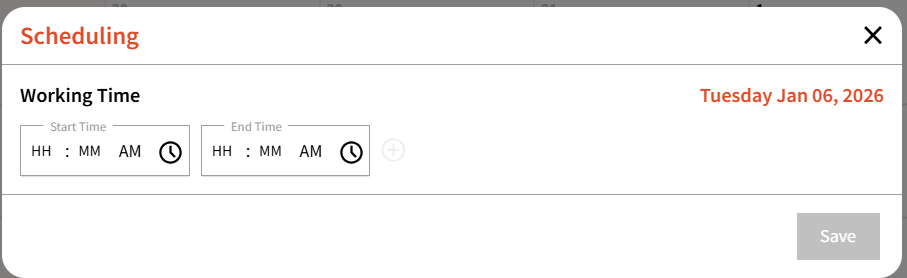
Display Settings
You can also update Display settings to either show or hide your staff member names to your guests in the Reservation Link.
By default, staff member names are visible to your guests.