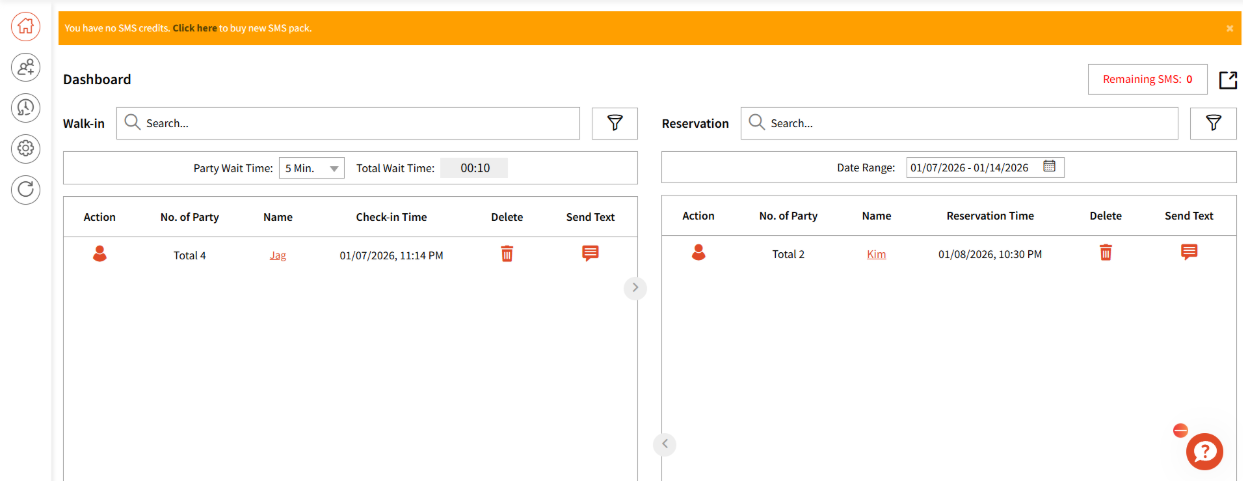
- User can view the Walk-in and Reservation data on dashboard.
Any appointments added through 'Add Guest' feature (covered later) or through the Reservation Link for guests showcase on this view where you can manage them with ease.
- User can select filters as per choice. Following are the default filters that cannot be un-selected:
For the following organizations:
1. Food and Dining2. Food and Drinks
3. Retail
4. Leisure and Entertainment
The filters will look like this:
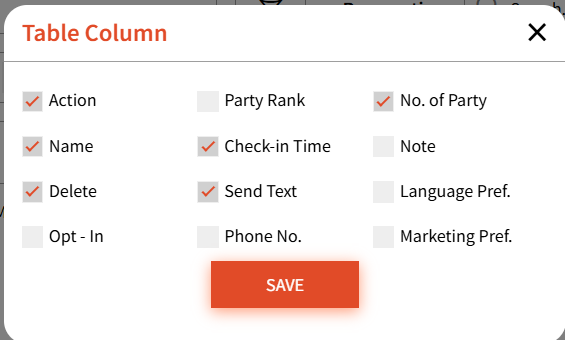
For the following service based organizations:
1. Beauty and Personal Care
2. Transportation
3. Professional Services
4. Charities, Education, Membership
5. Home and Repair
6. Fitness
7. Healthcare
8. Pet Care
9. Casual Use
The filters will look like this: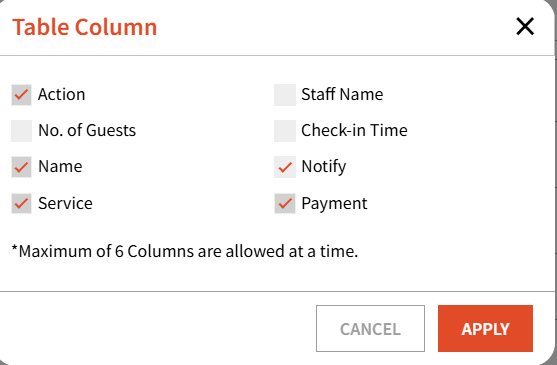
Note: For service based organizations, you will be required to create at least one service first before you can add guests. A prompt will show on the top of the dashboard using which you can do create services.
- User can select more filters based on choice for both Walk-in and Reservation column respectively.
- The user is also shown the SMS count on the top right, signifying the remaining number of credits. If user is running out of credits or is completely out, they can purchase more credits using the 'SMS Pack' option in My Account.
SMS pack will be dependent on your organization and plan type.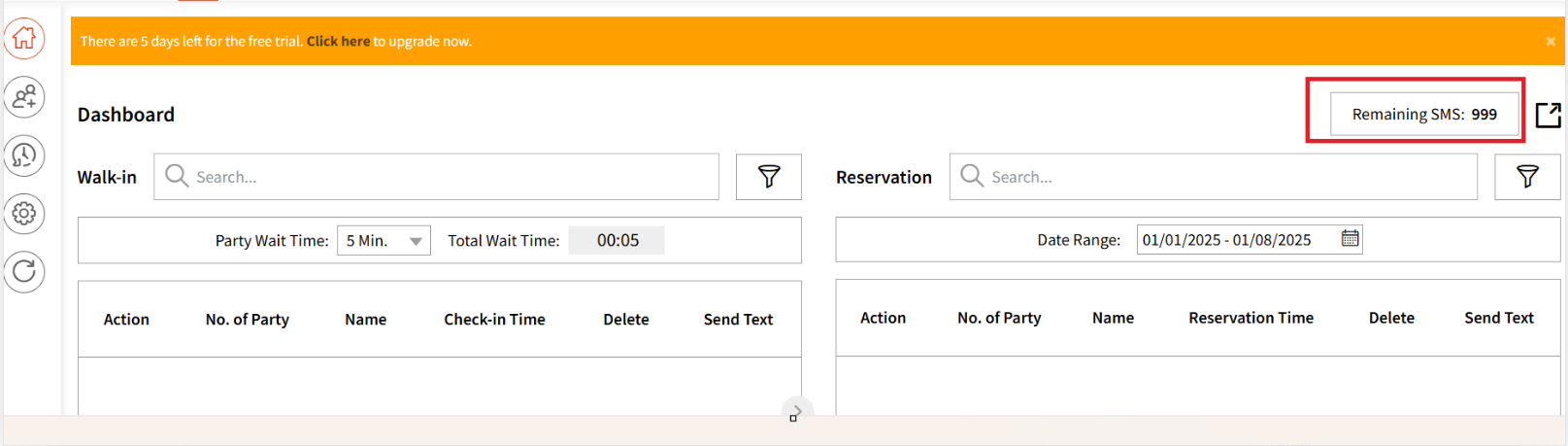
Action Button
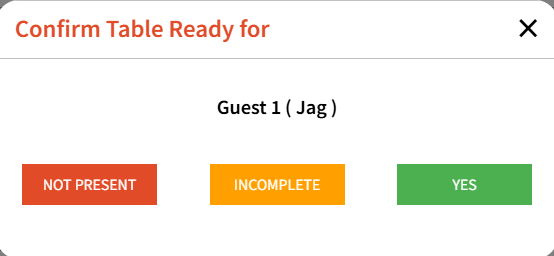
The action button for each guest will have the 'Not Present' and 'Incomplete' options for the following organizations that have the Table and Alert module included:
1. Food and Dining2. Food and Drinks
For other organization types, the action button for each guest will have an additional button in Actions tab called 'Yes' that will allow them to mark any guests as seated. Here are the organization types that support that:
1. Beauty and Personal Care
2. Transportation
3. Professional Services
4. Charities, Education, Membership
5. Home and Repair
6. Fitness
7. Healthcare
8. Pet Care
9. Casual Use
10. Retail
Not Present button - Can be selected if the party is not present when called for their table. Clicking this will show a thumbs down next to the guest name and this button can be clicked multiple times.
Incomplete button - Is meant to be used when the party is incomplete and is expecting more members. Clicking this will highlight the guest name like this: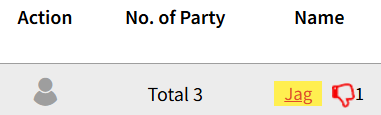
A Send Text option with pre-defined templates is also available, allowing you to send text messages to your guests. Please note that from the moment a guest is added until they are seated, we automatically sends notifications on your behalf.
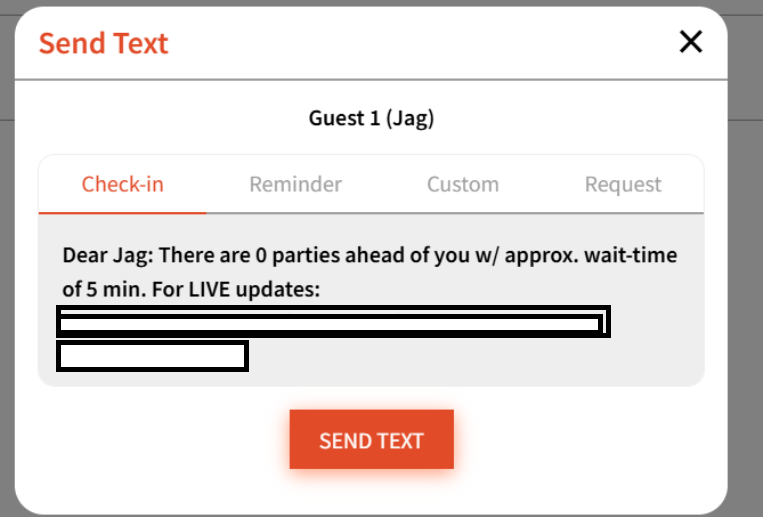
The delete option is also added if you wish to remove the guest. The guest is notified if deleted.
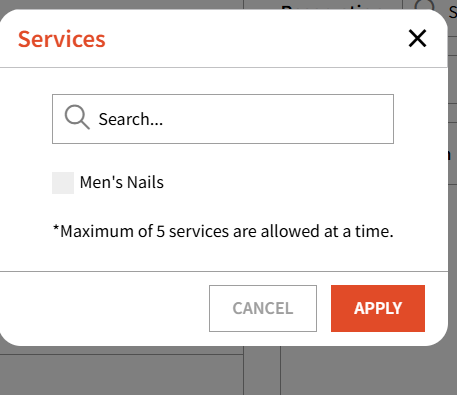
All the service based organizations will also have an additional 'Service' filter on top allowing users to filter Walk-ins and Reservations by the Service Category:
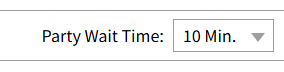
Wait Time
As an admin, you can also manage how much wait time needs to be displayed to your guests that are trying to add themselves to the waitlist using Self Check-in (covered in a separate article)
For example, if 10 mins per guest is selected and there are already 2 people in the walk-in list, then the 3rd guest will be shown a total wait time of 30 mins.