
Please note that Table & Alert Management module is only part of the following organization types:
1. Food and Drinks
2. Food and Dining
Set Alert
Once guests are assigned to a table, they are sent a link to their phone number allowing them to input any table requests you have configured.
- As an admin, you will have the ability to select what alerts they would like to receive from their guests. They can be added using the Set Alert option provided in the Alert Settings.
- User can simply use "Add Here" to create tags. These tags will show up on the link sent to guests that will allow them to alert the staff.
- For instance, a restaurant user can add the tag named "Water". A guest dining in can click on that tag using the link sent to their phone that will allow the staff to be notified that this particular guest is requesting water.
- Please note that whenever a guest gets assigned to a table, a text is sent to their phone number with a link that will allow them to input requests that are added by the user in the setting.
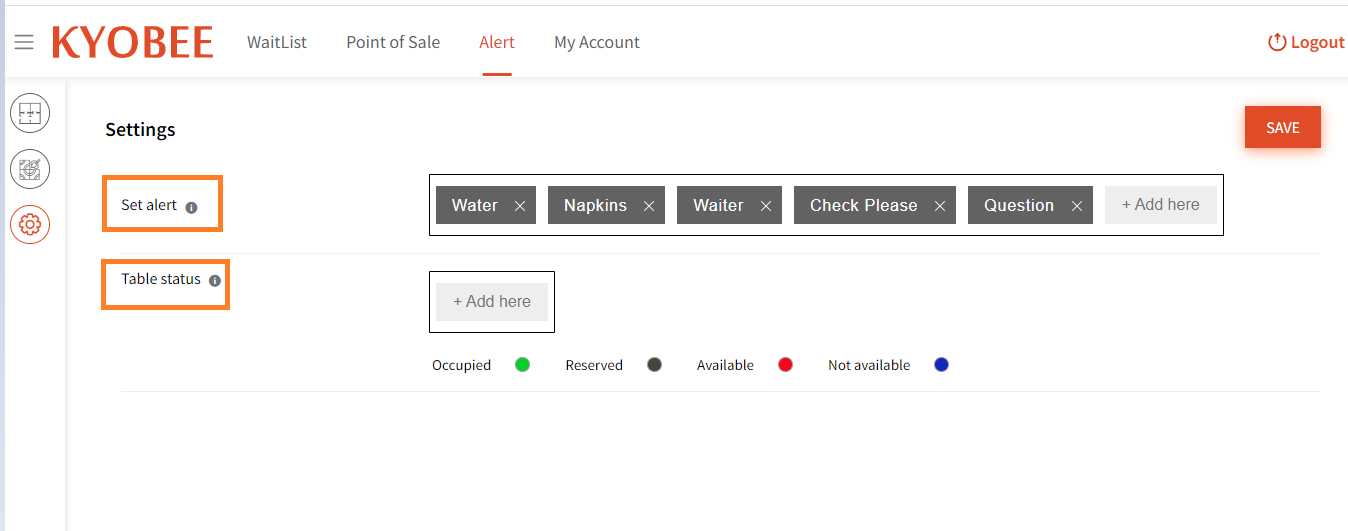
Table Status
- User also has the ability to add status tags that can assigned to each table using the Table status option.
- User can simply hit "Add Here" to add tags. Once user types the tag name, they can hit enter to save it.
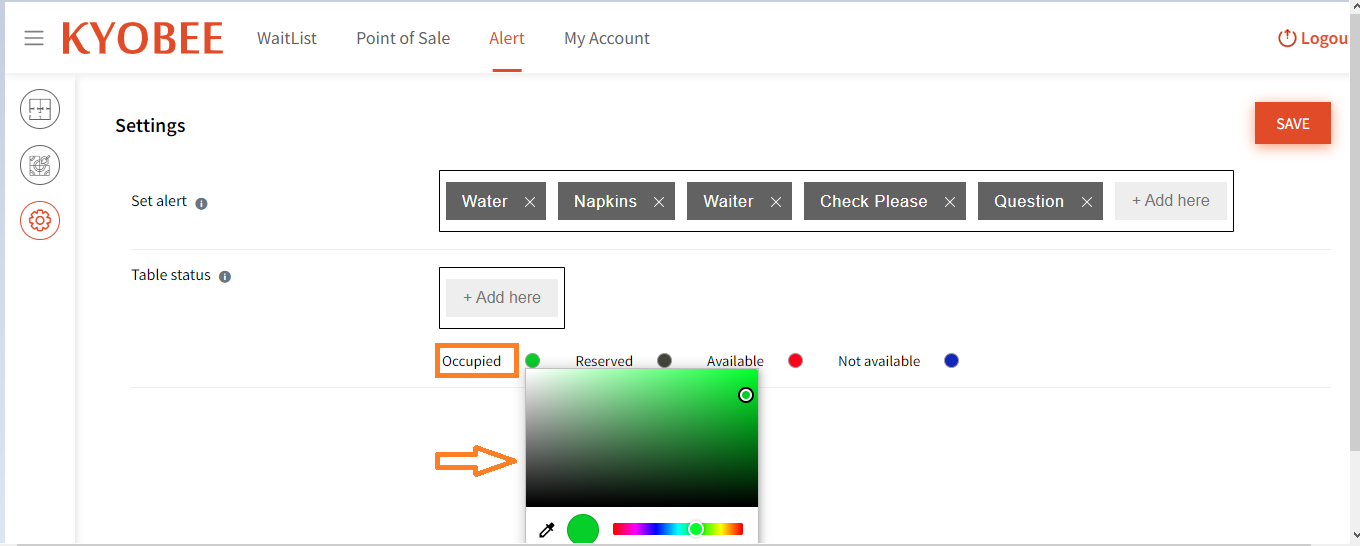
- User can then assign a color of their choice to that tag by clicking on it that will open up a color pallet for the user to select their preferred color from.
- For user's convenience, we have provided 4 pre-added tags that include: Occupied, Reserved, Available, and Not Available.
Statutes:
1. Occupied: This status gets allocated each time a guest is assigned to a table
2. Reserved: You can choose which tables you wish to assign for only the 'Reservation' guests. Tables marked as 'Reserved' will only allow guests that are part of 'Reservation' to be assigned to these tables.
3. Available: Each table that is not occupied will show as 'Available'
4. Not Available: You can also mark tables that cannot be assigned to anyone as 'Not Available'.
- User can change the pre-added tag colors in the similar way by clicking on the name that will open up a color pallet for the user to select their preferred color from.
The selected statuses and their corresponding colors will show on the Alert module on the tablet app: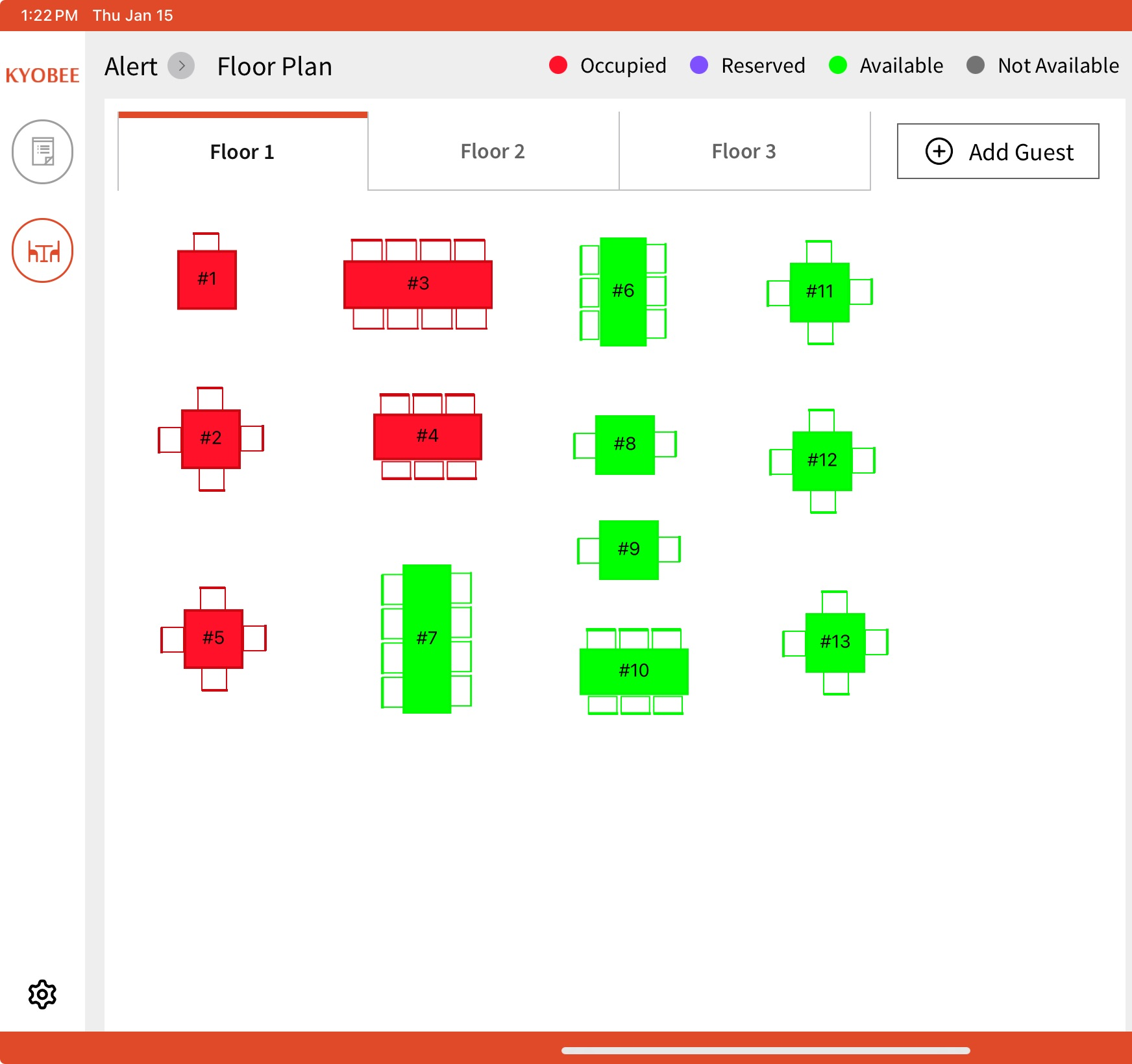
Please note that for assigning guest to tables, you will need to use the Tablet app or the Staff app.
Web only contains the Settings part of the Table & Alert module.