Assigning Reservation Guests
Print
Created by: JENIS SHAH
Modified on: Thu, 15 Jan, 2026 at 1:58 PM
- User can look up the reservations for the day using the reservation tab located on the right side in the Alert module.
- If you wish to, you can reserve a table for the guest. You can simply select a table that's available and change it's status to "Reserved".
This can easily be done by clicking on that particular table in the floor plan and changing the status using the pop up menu that shows on the right. Note: Changing table status can only be done using the the Tablet app:
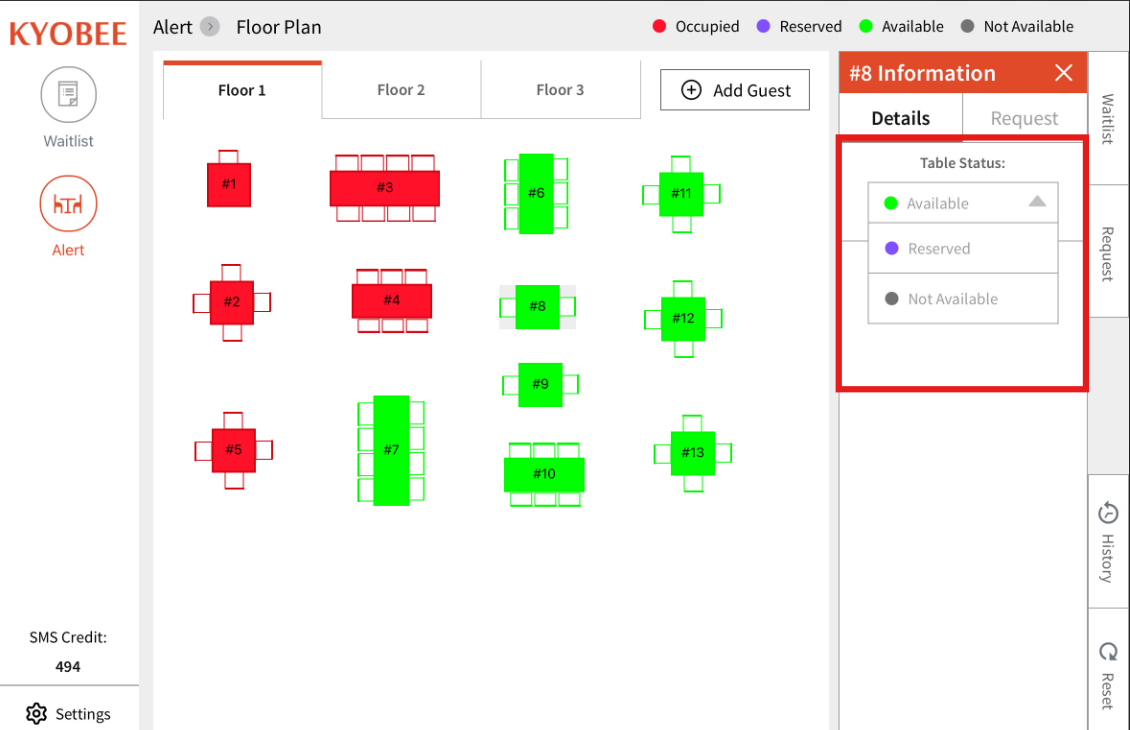
- Once a table is reserved, it will show the reserved color on it and clicking on it will also show the status as "Reserved".
- Once the guest has checked-in for their reservation, you can simply drag and drop the guest from the list to the table you wish to assign them. You can also tap their name in the list and assign them that way.
You can also assign them a server by tapping their name or by clicking the table if already assigned:
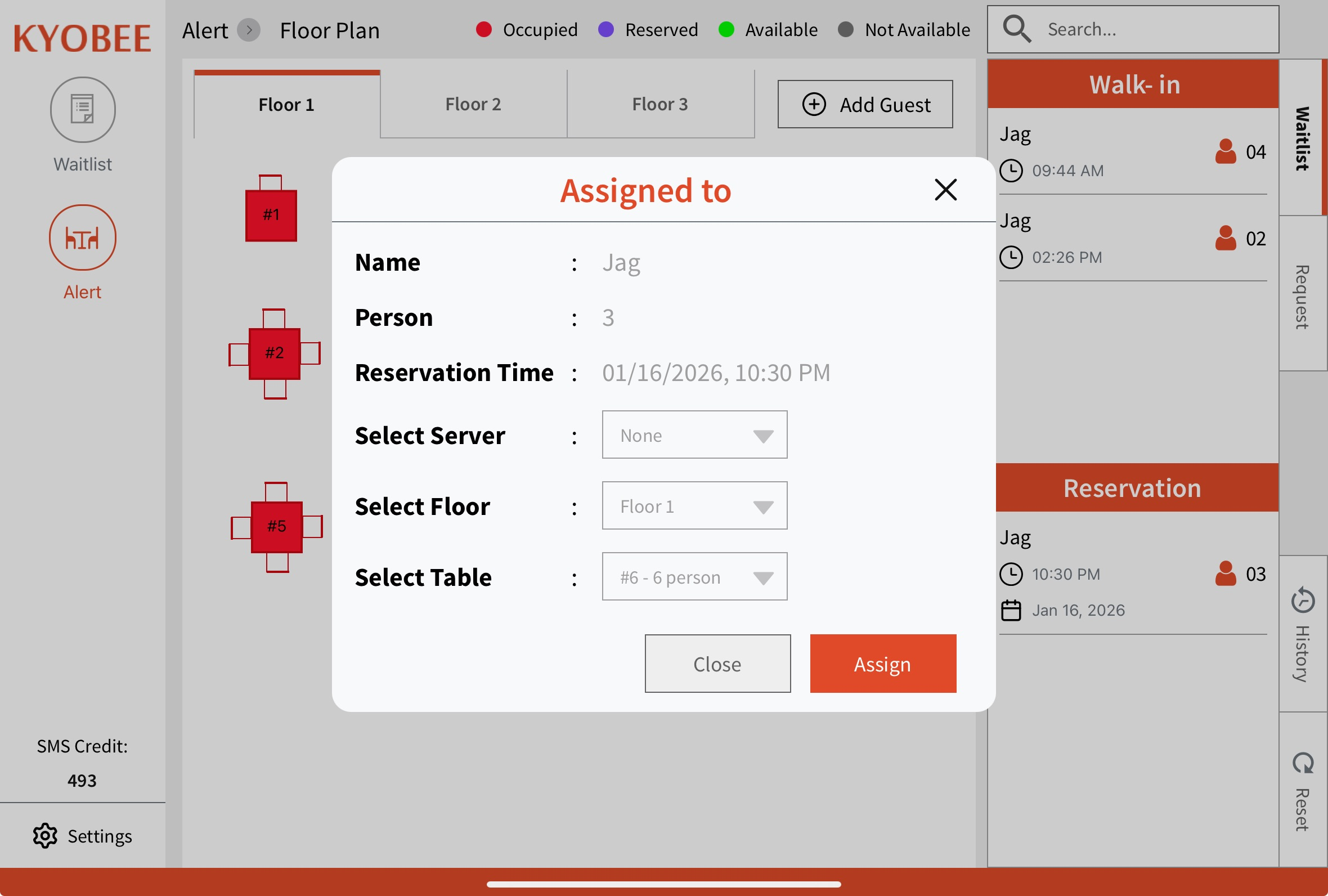
- Once assigned, this will mark the table as "Occupied" and also send an automated text to the guest's registered phone number that will contain a link from which they can start placing table requests.
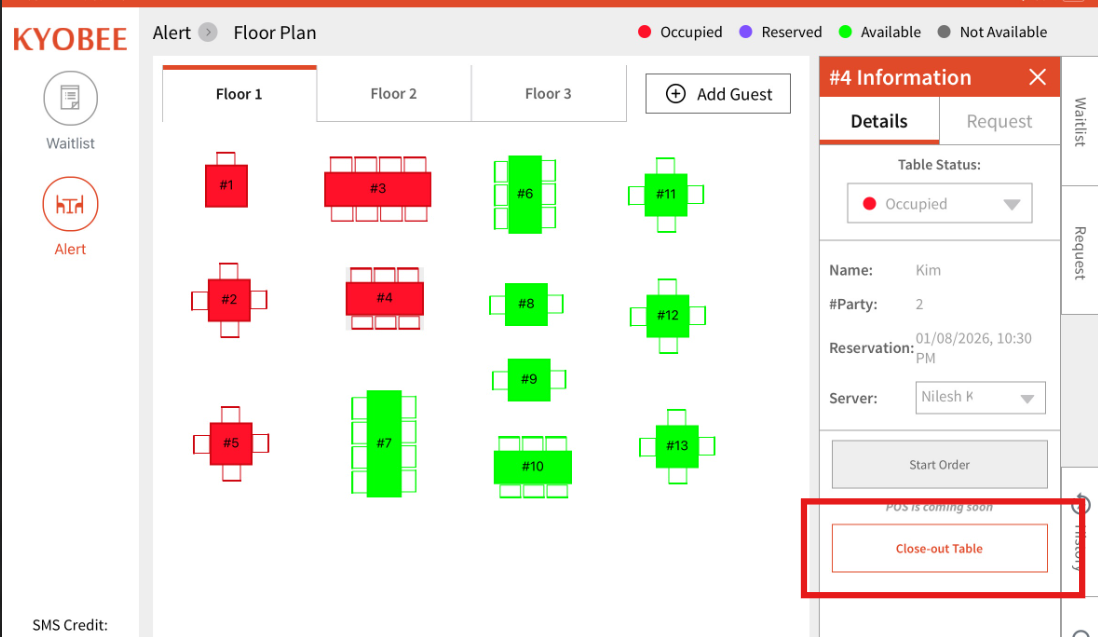
Please note - Reservation guests can also be assigned to open tables (that are not marked as reserved). - Once the guest has completed dining, the table can be closed out by selecting the Close-out Table button that will make the table status as 'Available' again.
- Once a table is marked as closed out, the guest is moved to the History tab which gets reset overnight.
Jenis is the author of this solution article.
Did you find it helpful?
Yes
No
Send feedback Sorry we couldn't be helpful. Help us improve this article with your feedback.
