
Enable and Disable the bot
- User can enable or disable the bot even after the setup
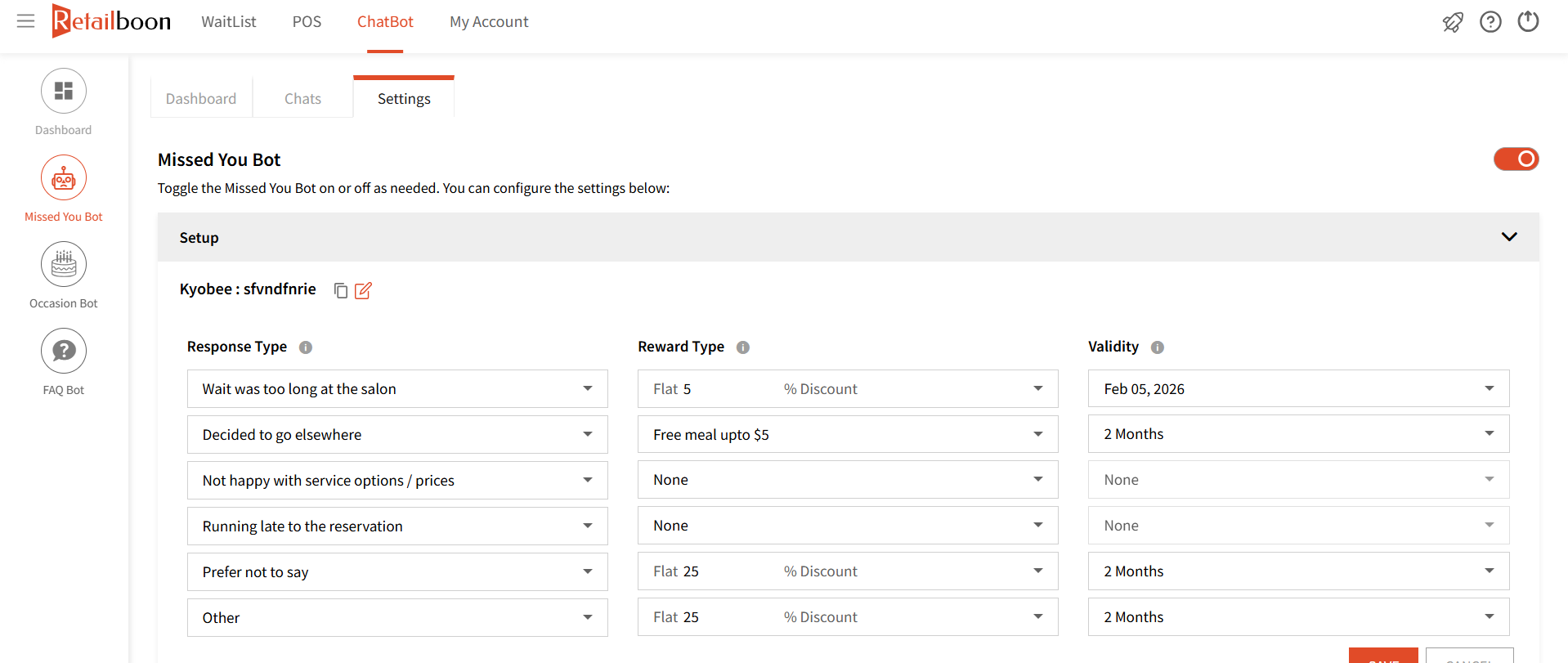
Setup Screen
User can update settings from the time of the setup in this screen.
- Verify/change the settings in the Setup section
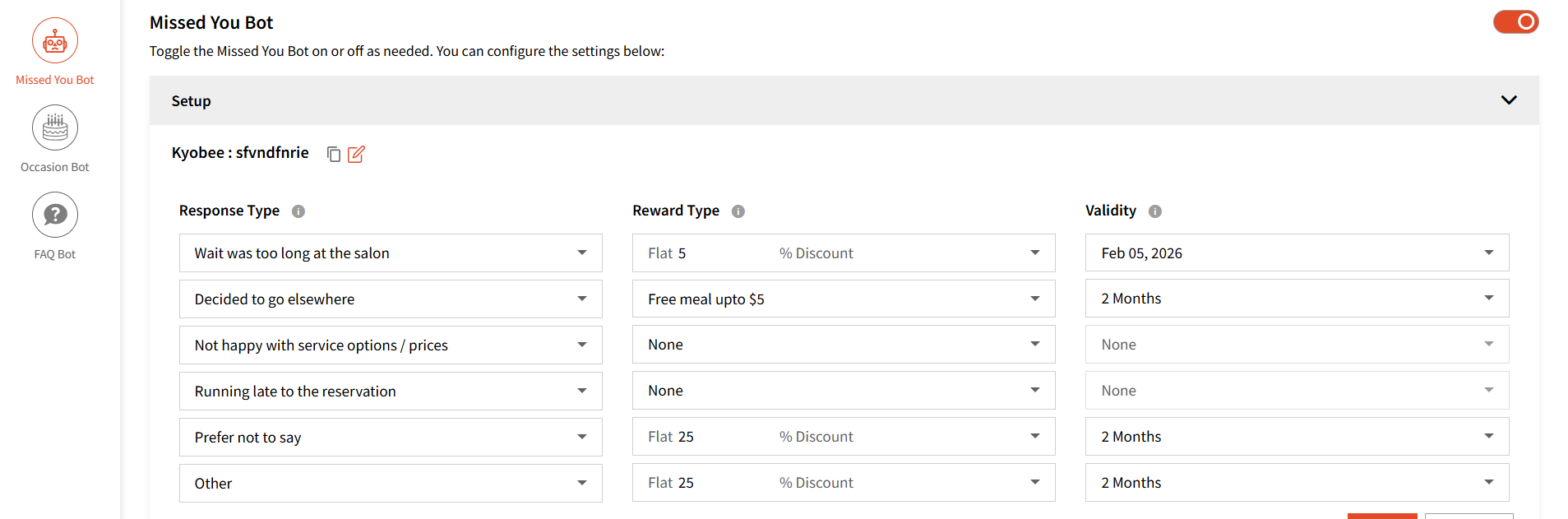
- User can see the setup integration, and they can click on Edit Icon, where they can edit the integration and Copy Icon the Integration API Key
Note: We are working on making integration work with these 3rd party providers mentioned above.
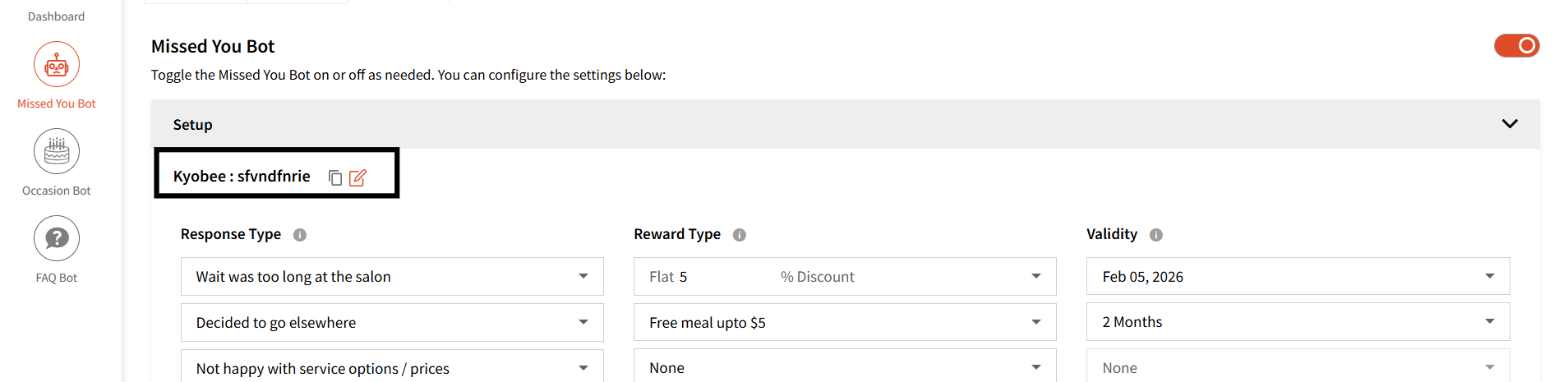
- Similarly, user can verify/change the response type
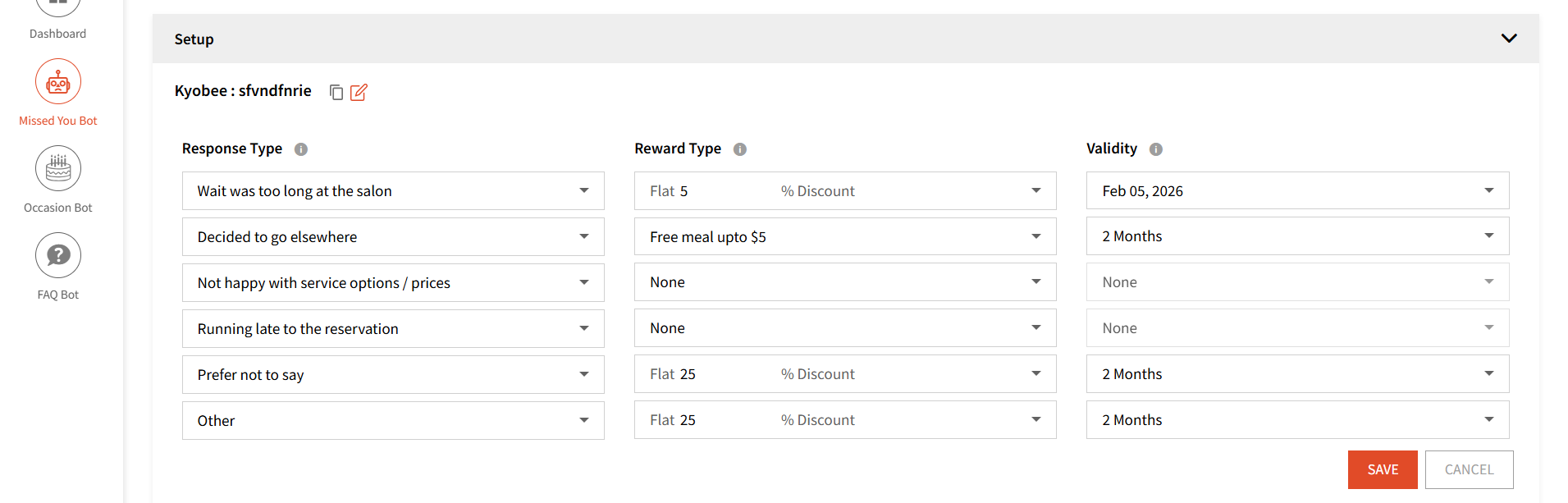
- Similarly, user can verify/change the Reward Type and Validity
Follow-up Text Screen
Similarly, user can verify/update the following Follow-up Text Screen settings:
- User can enable and disable the Send text to a new Leads to engage with the bot by clicking on the toggle and hit Save to save the changes.
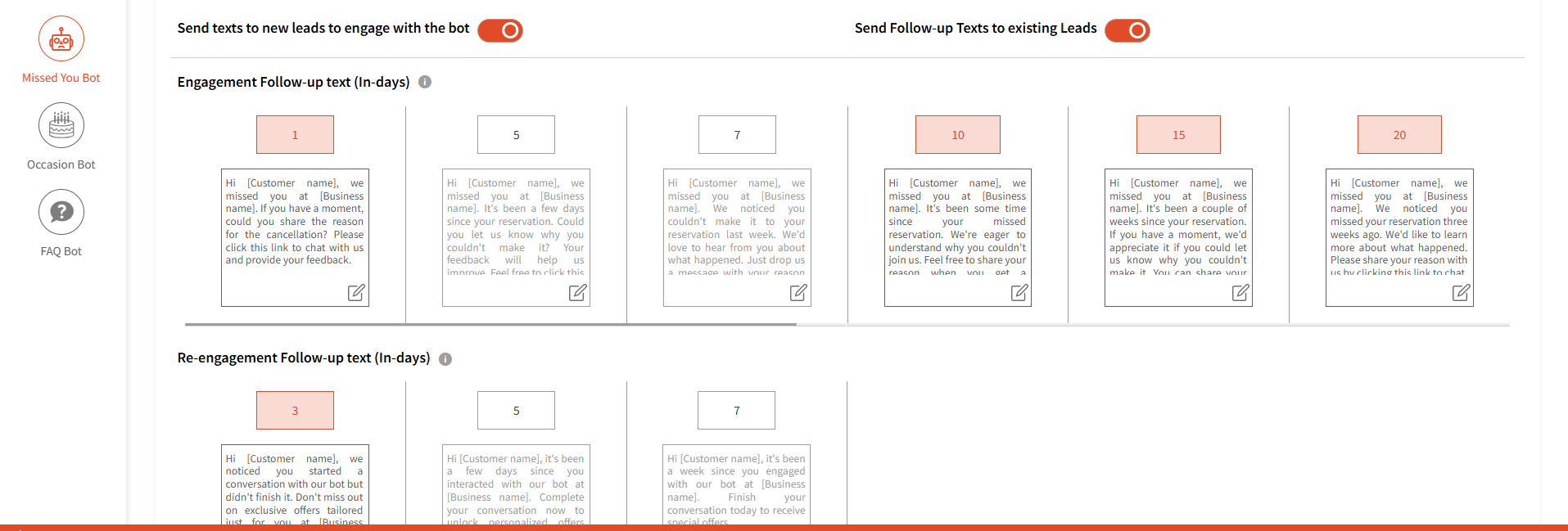
- User can set the Send Follow-up Texts to Existing Leads to enabled or disabled and change it by clicking on the toggle, and by clicking the Save button, the new data will be saved.
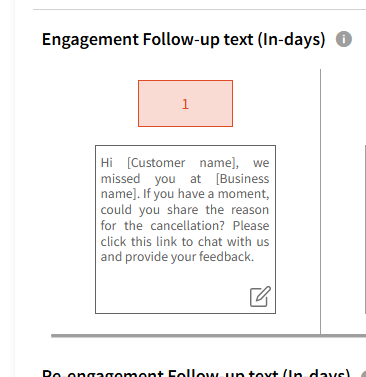
- User should be able to set the engagement follow-up text (in- days) and change it by clicking on the edit icon, and by clicking on the Save button, new data should be saved. This is the language set to the guest via text. We recommend keeping it the way it is.
- User can check/uncheck the different Engagements days for sending the " Follow-up" text . Follow up texts are mainly helpful when guests have not interacted with the bot after the first text message is shared.
- User should be able to see the set Re-engagement Follow-up text (in days) and change it by clicking on the edit icon, and by clicking on the Save button, new data should be saved.
- User can check/uncheck the different Re-Engagements days for sending the " Follow-up" text
User can also Activate the bot to reach out to customers who have not visited in a certain no. of days.
By keeping the toggle ON as shown below, you can select the days after which you would like the bot to reach out to customers who have not visited in those specific days.
For ex. if 30 days is selected, any customer who has not visited your business in the last 30 days will be notified. Similar to the settings covered above, you can edit and change the text message for each day that you wish to turn on. However, we recommend keeping the same text template as shown.
