Available Menu
Under the POS module, you can click Items & Services to access many options such as 'Available Menu' or 'Available Catalogue'
For non-food organizations, Menu will be called Catalogue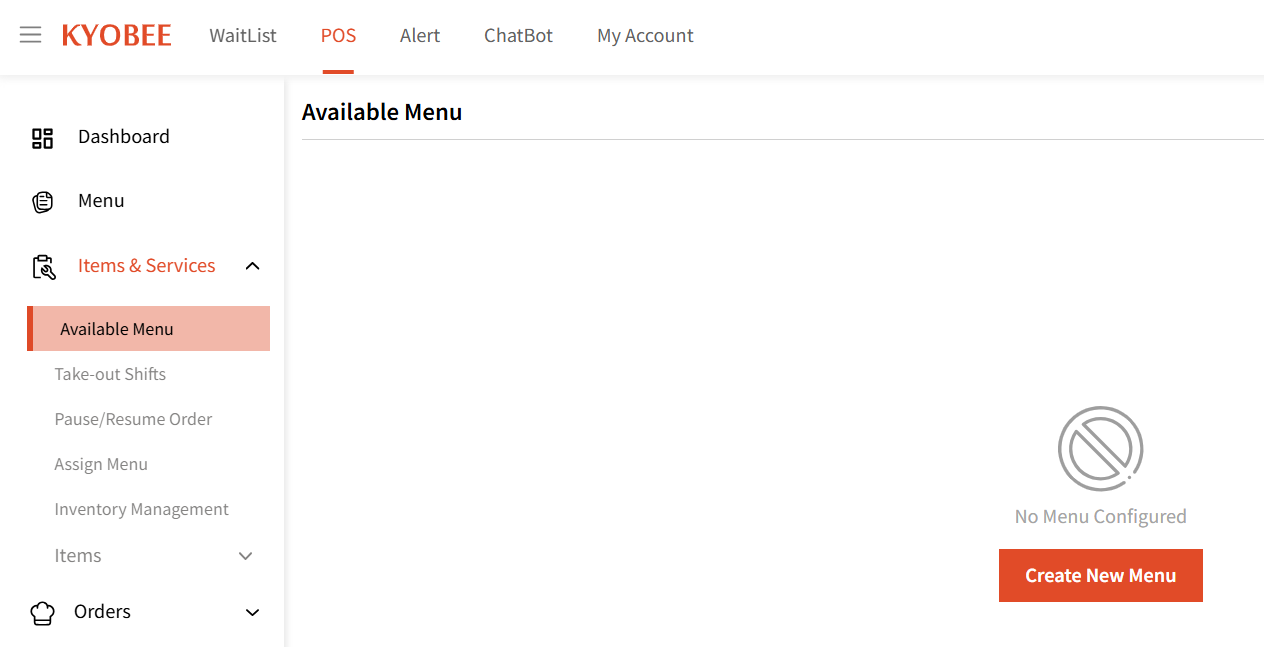
Here, you can create new Menu for your business
The entire list of Menu/Catalogue will show here: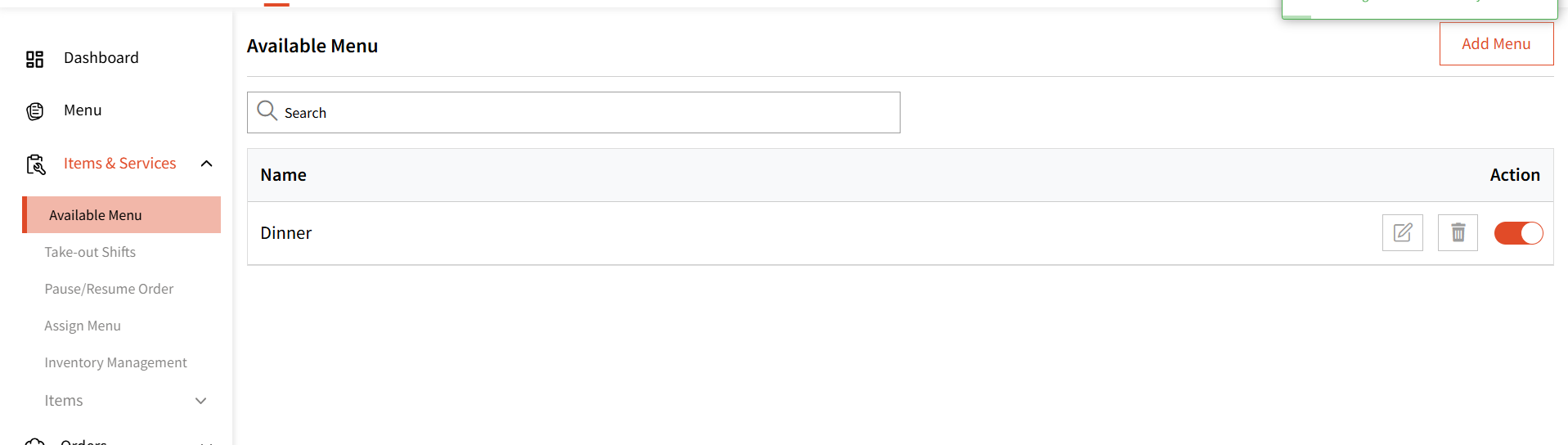
Take Out Shift
Here you can create Take out shifts for your business and then apply the created Menu/Catalogue to this. Take out shifts denote the days and times of the week you offer a particular menu/catalogue for online orders.
Note: Currently, we don't have online orders or integration with 3rd party online ordering available but you may still set up take-out shifts. We are actively working on supporting that feature.
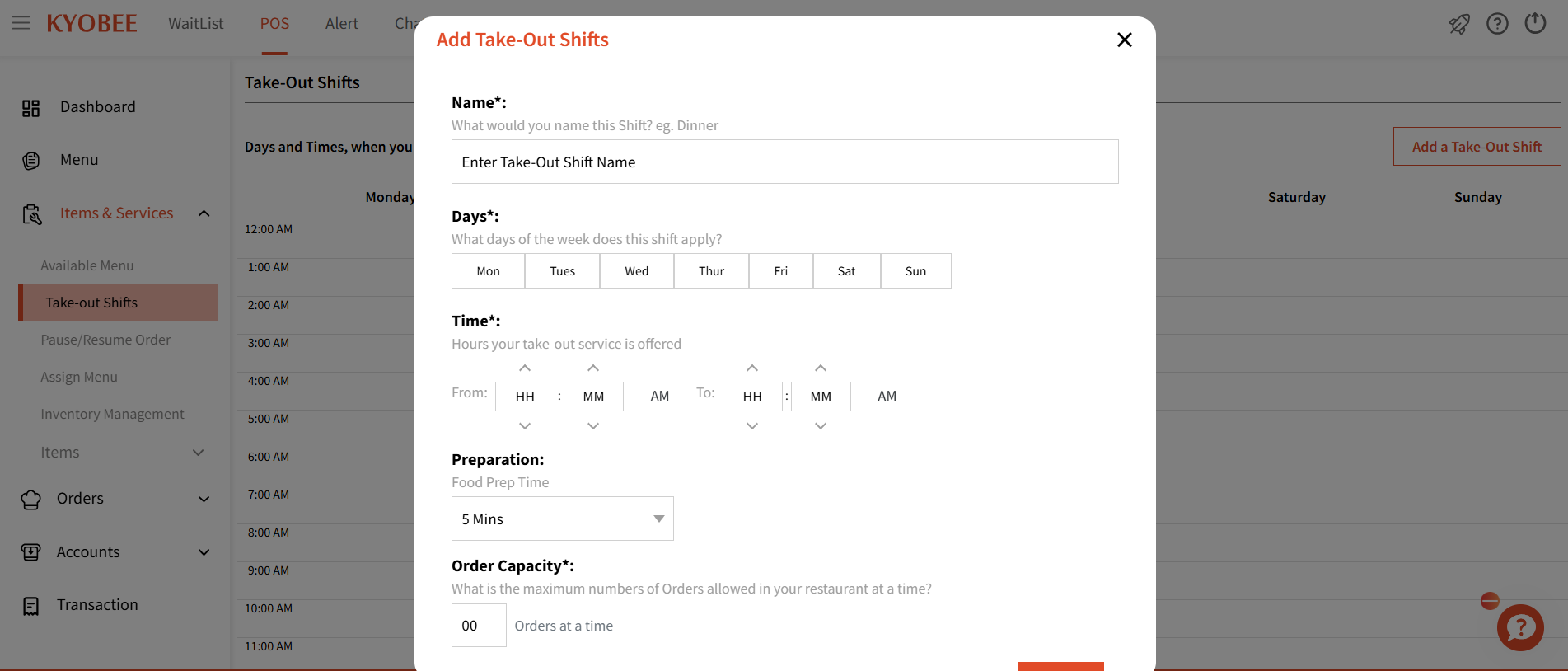
Once a take out shift is created, you can tap on 'Assign Menu/Catalogue' to assign a menu/catalogue to a take out shift: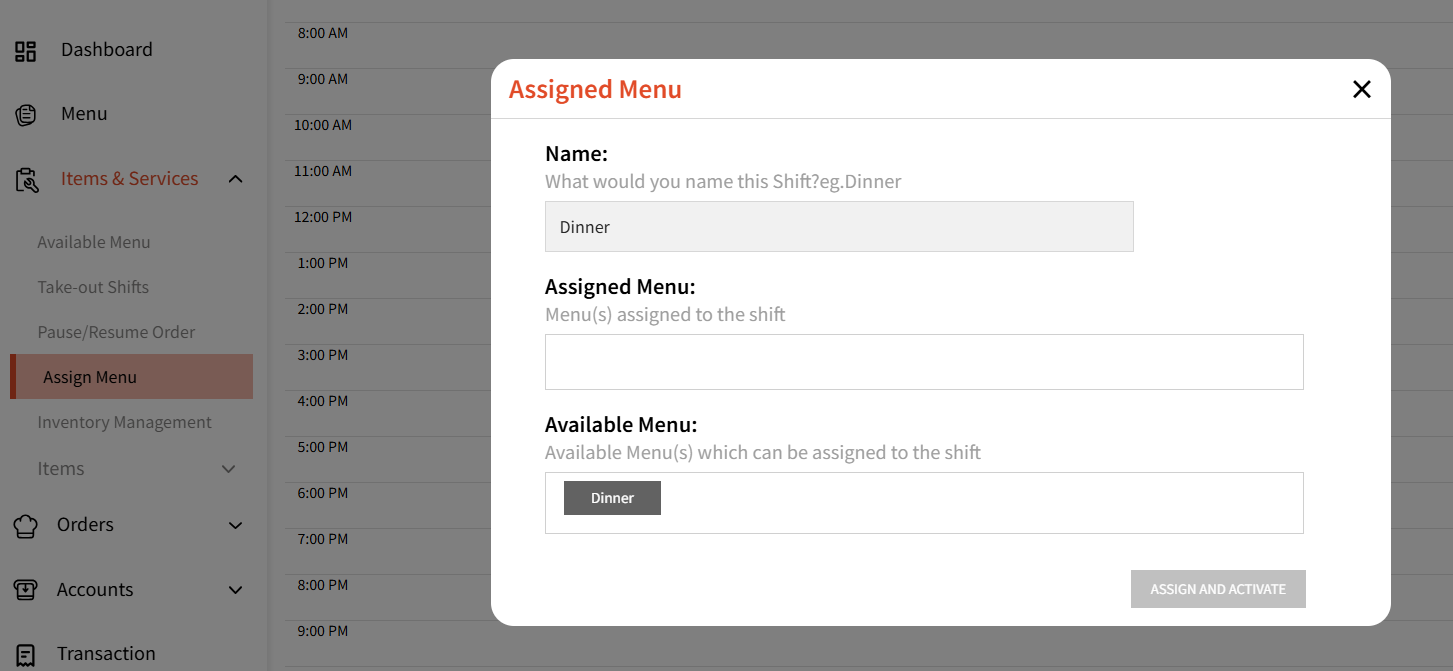
Pause/Resume Orders
This feature is to pause/resume online orders but we currently don't have online orders implemented. 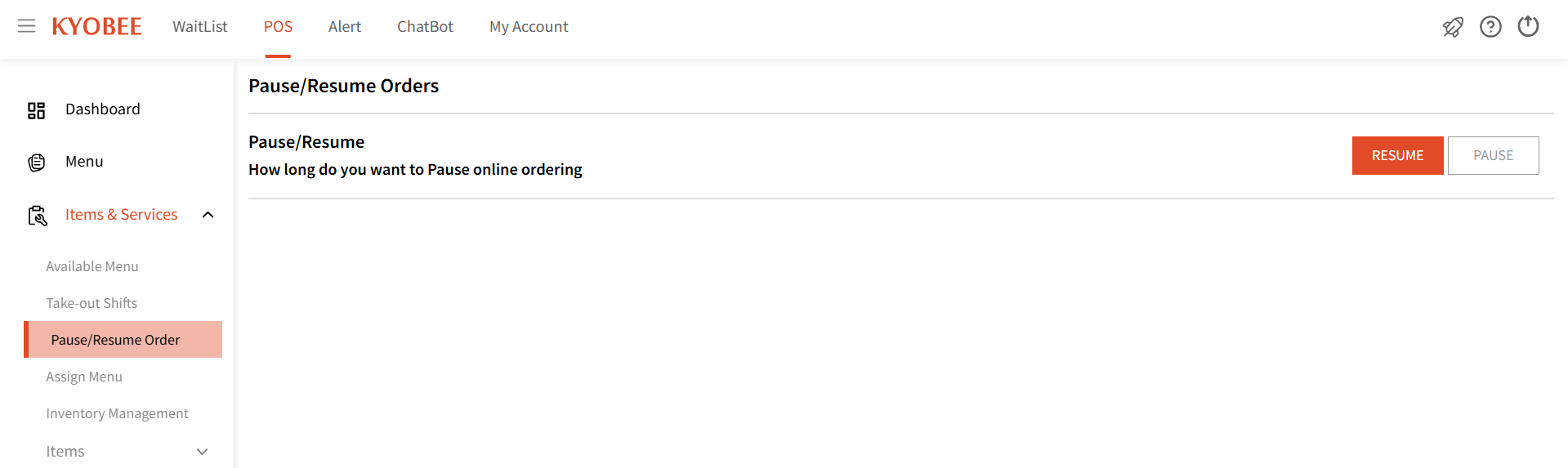
Items
Item Library
In Item Library, you can create and manage items.
We support multiple item types:
1. Food/Beverage Item
2. Event
3. Donation
4. Physical Good
5. Digital Item
Note: Depending on the type you choose to add, the 'Add Item' form will vary.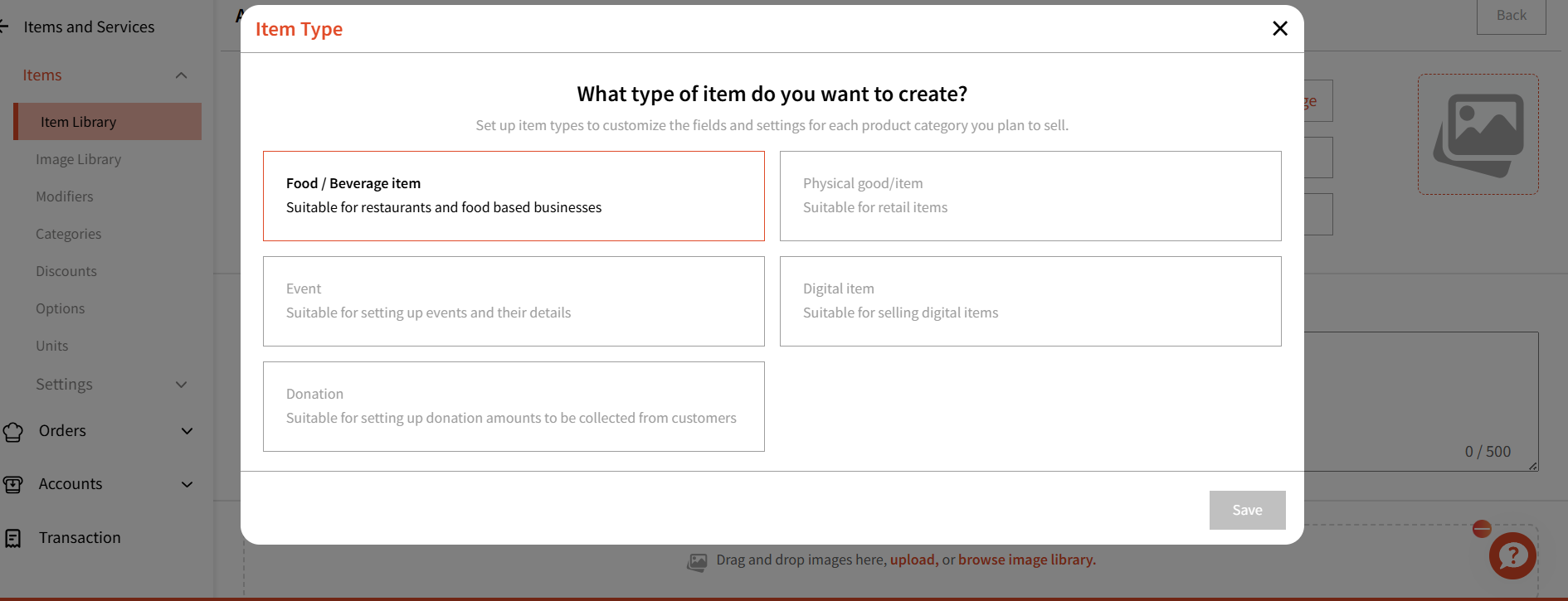
You can add a Name based on which, a Short Code will generate automatically that you can edit if you wish to.
The purpose of Short Codes is that your staff members will easily be able to find items by typing it in the search when adding items for a guest.
AI-Based Description
You can click 'Generate' if you wish to use our AI based helper for generating a description for your item. 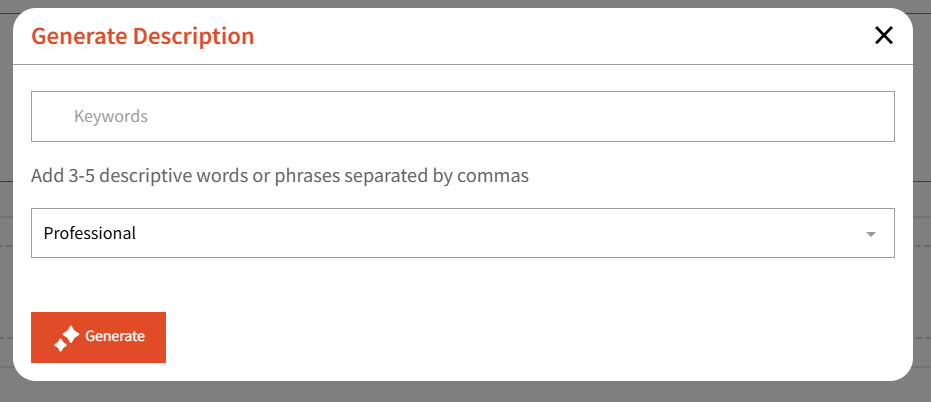
Image Upload Option
You can add images in three ways: select from the Image Library, upload from your computer, or drag and drop files. You can even set a cover image.
Categorization
You can attach Menu/Catalogue along with a category to this item here.
For Food Items, you can enter Nutritional Information as well:
Age Verification

You can also set a minimum age for an item. If configured, staff or admins will be prompted at checkout to verify the guest’s age.
Sales Tax
Here, you can attach and taxes you've created and want to apply to this item at checkout. Taxes can be added and managed under My Account -> Marketplace -> Tax Setup
Sell as a Single Item / Sell as a Bundle
You can add your item’s unit type and unit cost here. Note: This is your internal cost, not the price charged to guests.
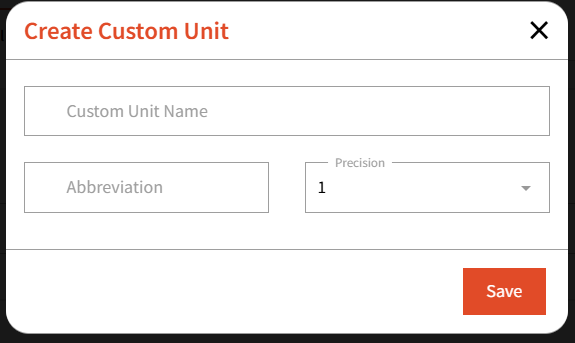
You can even create new unit types by creating 'Add Custom Unit'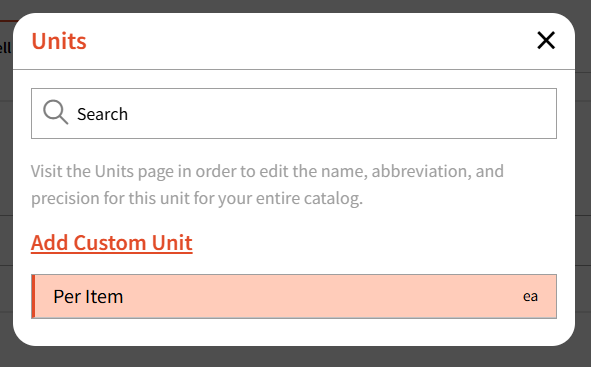
You can add a custom unit name and an abbreviation (for example, kg for kilograms).
Precision lets you control how the unit is rounded. For example, if you set the precision to .0 and add 5 units, it will be stored and displayed as 5.0.
If you have selected 'Sell as a single item', you can add the Selling price, GTIN, SKU, and the weight of the item under Variations

Sell as a Bundle
You can select this for selling an item as a bundle. 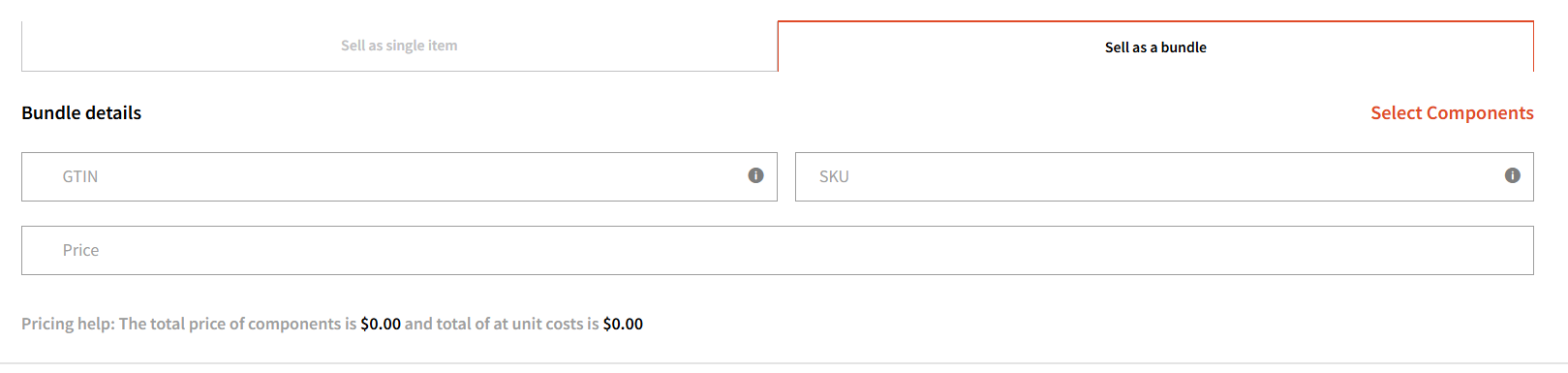
Select Components will allow you to pick other items you've added already and make a bundle.
You can select the a GTIN and SKU number along with the selling price for the bundle.
Options
You must first configure options under Items -> Options.
Any options set up there will appear here when you click Add.
Options represent variations for an item, such as Colors and Sizes. For example, you can create a Color option with values like Black, Blue, and Red. Applying this option will create 3 item variations.
Variations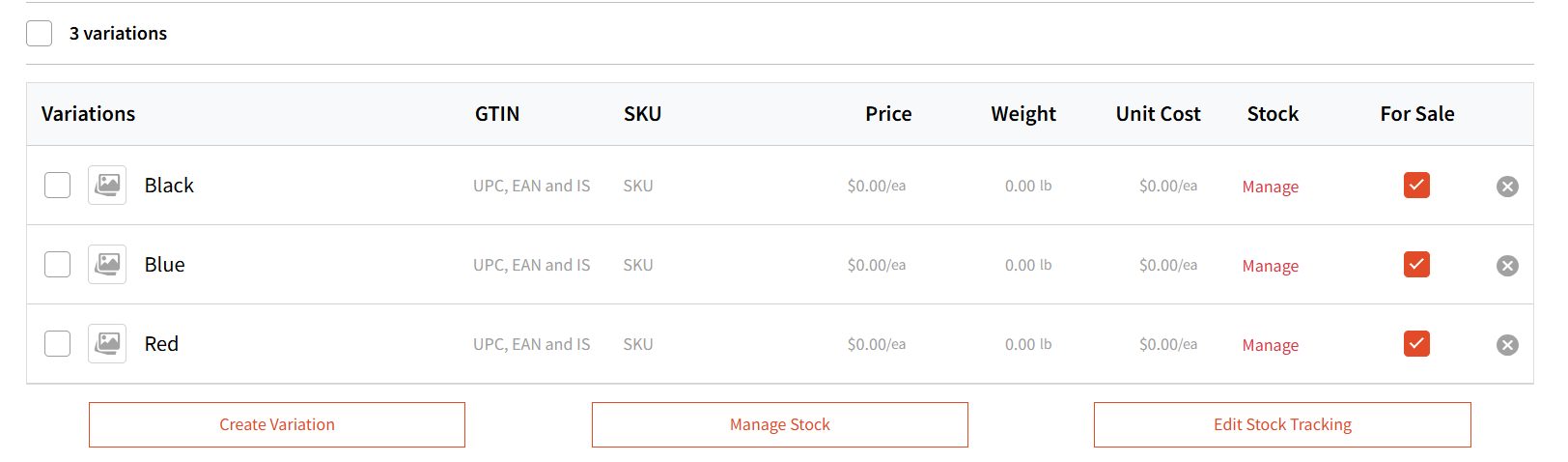
Managing Stock is covered in detail in another article
Modifiers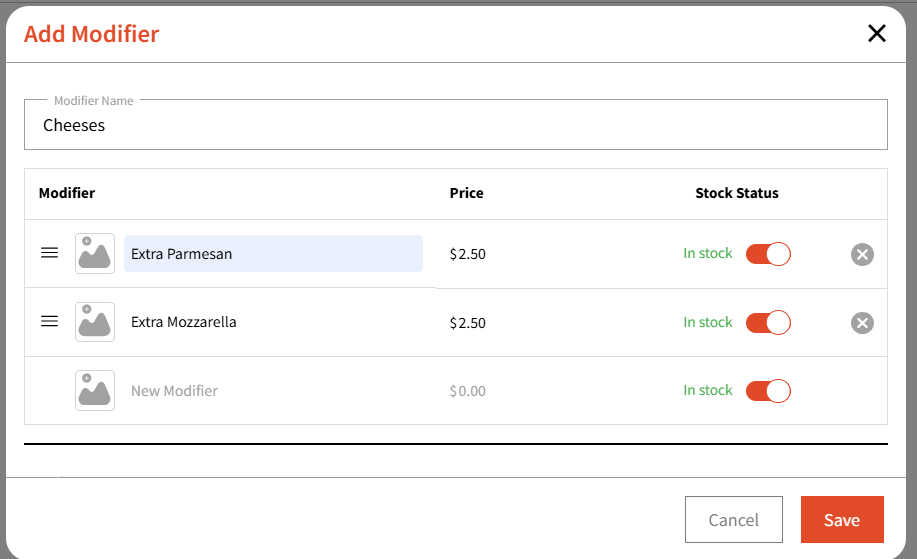
Similar to Options, you can add a Modifier group and attach to the item. These can be things such as Add-ons.
For example, you can create an 'Extra Cheese' group and add individual modifier options under the group such as Extra Parmesan Cheese, Extra Mozzarella Cheese. You can even setup a price.
When taking an order, these options will be shown to choose from when checking out this item.
Other Item Types:
For Event item type,
You will have additional information to add when creating the item.
You can choose the 'Location Type' i.e. 'In Person' or 'Online'. Depending on your selection, you can fill out the details. 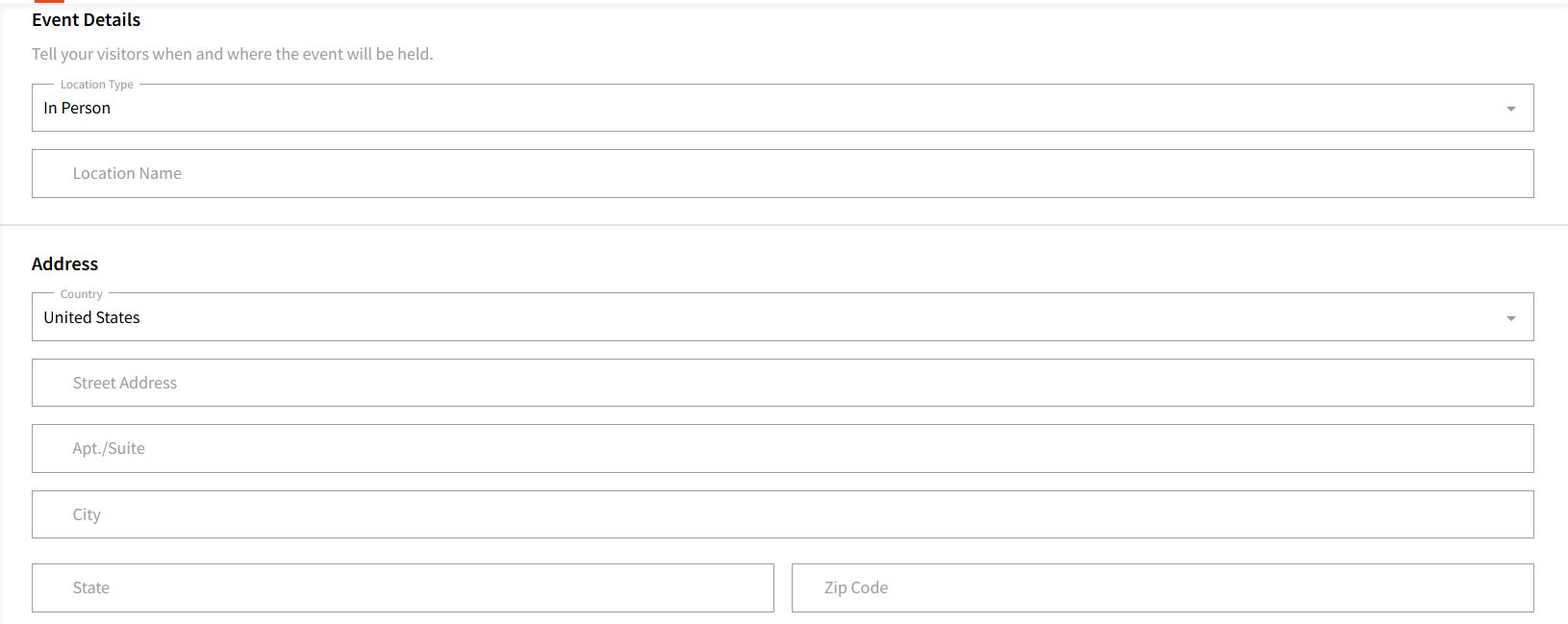
Once done, you also need to add the following details: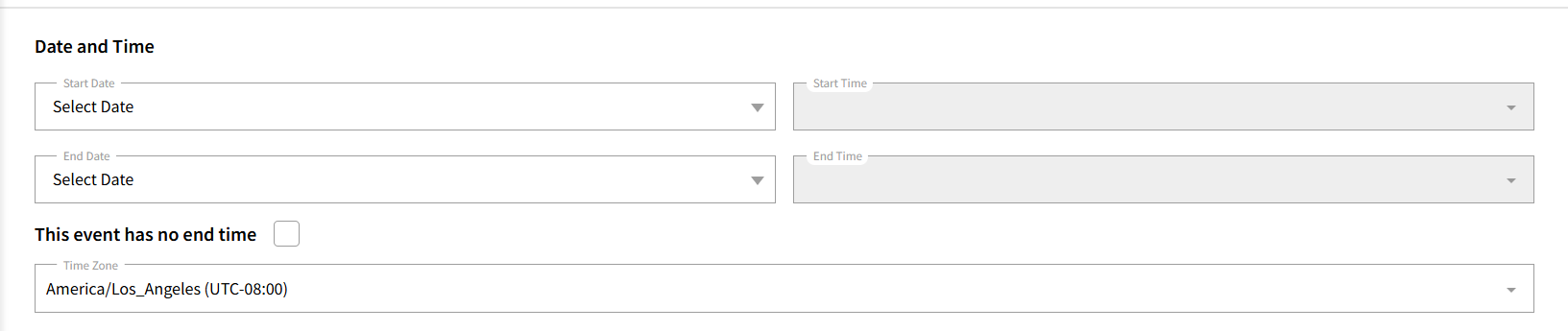
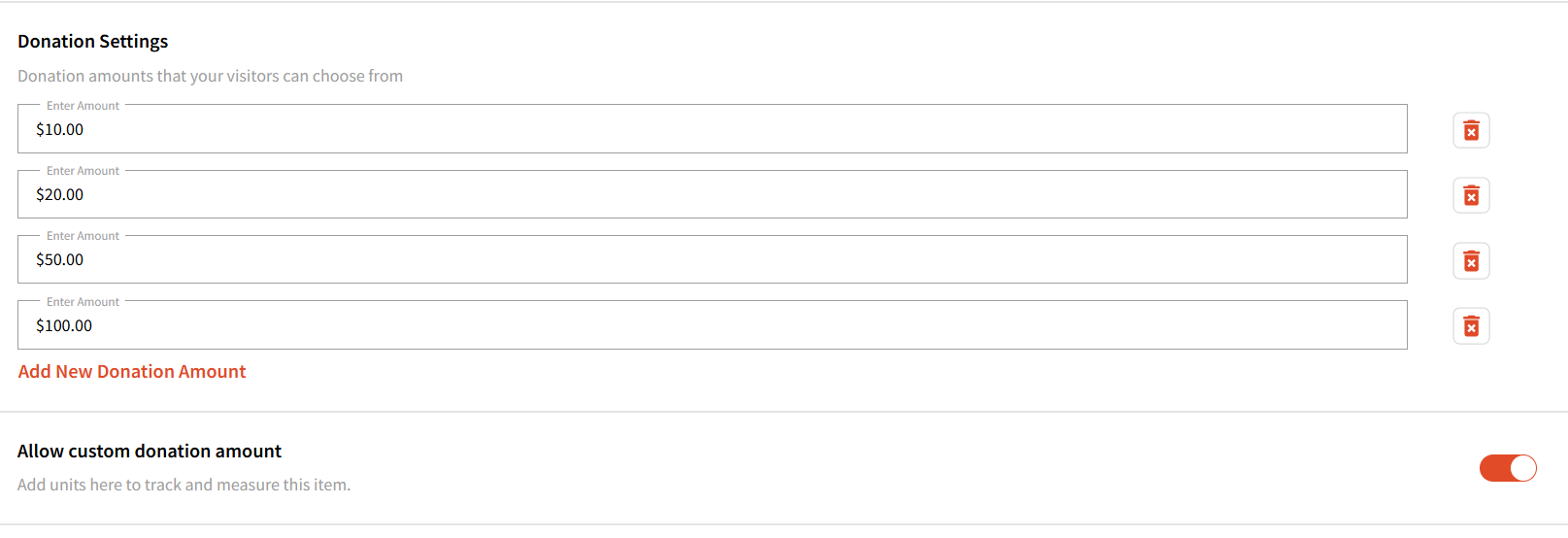
For Donation item type, you can choose from the configured donation amounts you wish to add OR you can even allow custom donation amounts that can be entered during this donation item type checkout.
Please note: Options and Stock Tracking are NOT configurable for the 'Donation' item type.