
In the Item Library, you can manage your Services.
Note: Only the following organization types will have access to Services:
1. Beauty and Personal Care
2. Transportation
3. Professional Services
4. Charities, Education, Membership
5. Home and Repair
6. Fitness
7. Healthcare
8. Pet Care
9. Casual Use
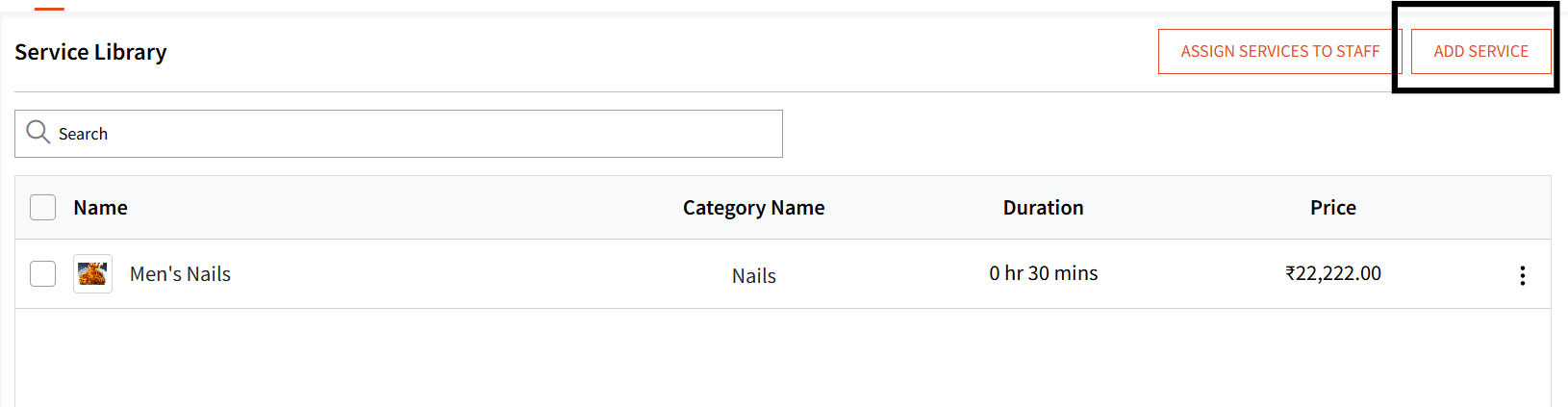
Here you can click 'Add Service' to create a service. Similar to item creation, a form as such will be presented that you can fill out: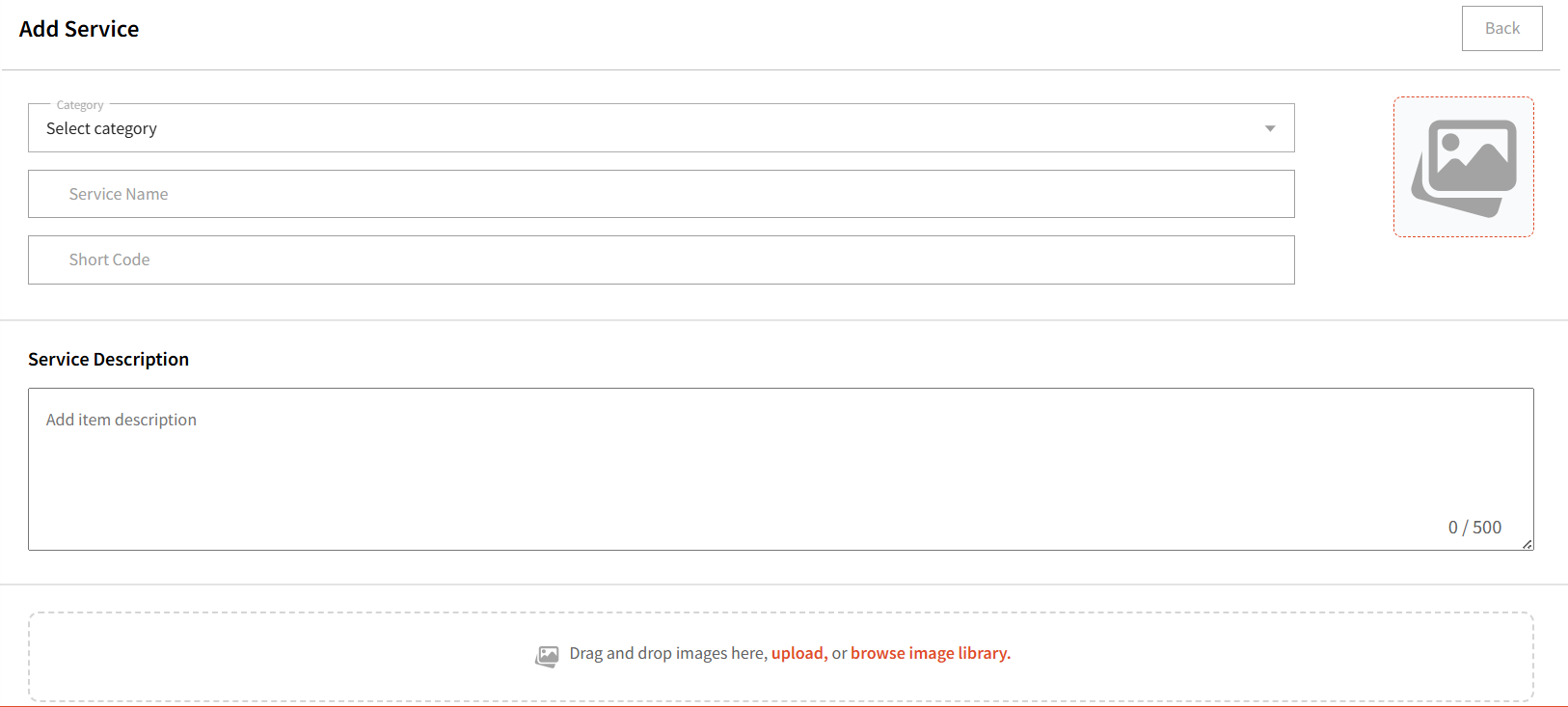
Categories
You can create a new service category to attach the service you are creating here or attach this service to an existing service category.
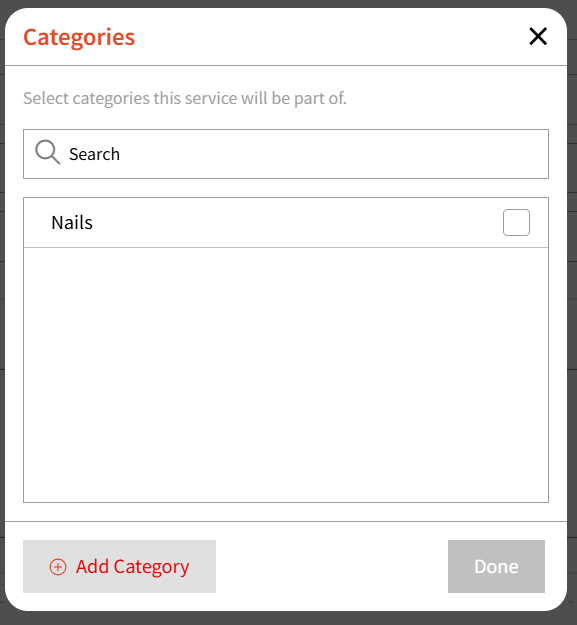
You can attach the service to multiple services if you'd like.
You can add a Name based on which, a Short Code will generate automatically that you can edit if you wish to.
The purpose of Short Codes is that your staff members will easily be able to find items by typing it in the search when adding items for a guest.
AI-Based Description
You can click 'Generate' if you wish to use our AI based helper for generating a description for your item. 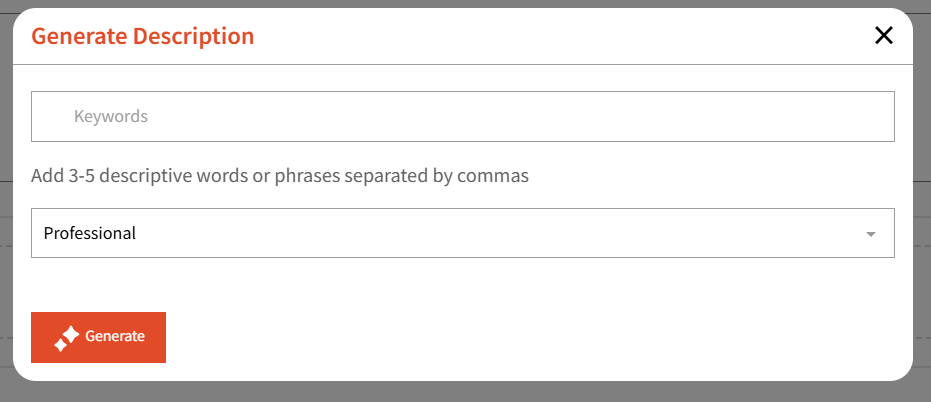
Image Upload Option
You can add images in three ways: select from the Image Library, upload from your computer, or drag and drop files. You can even set a cover image.
Duration

Here you can add the time it takes for this service. For example, if you are adding a service named 'Men's Haircut' and it takes 45 mins typically, you can add that time here.
This time will be displayed when adding a guest from the Waitlist Module OR when a guest is adding themselves using the Reservation Link or Self Check-in
Note: At this time, reservation times do not adjust based on service duration. The default interval between appointments is set to 30 minutes.
For example, if your business operates from 9:00 AM to 5:00 PM, the service will appear available in 30 minute time slots throughout the day.
We're actively working on enhancing the flow to align reservation availability with your service duration and assigned staff schedules.
Block Extra Time is a feature in the form but we are working on adding that in the near future.
Sales Tax
Here, you can attach and taxes you've created and want to apply to this item at checkout. Taxes can be added and managed under My Account -> Marketplace -> Tax Setup
Amount
Here you can set the amount for the service. 