
If your item is marked as 'Sell as single item', this is how you can do stock tracking:
Note: For 'Sell as Bundle', stock tracking won't be available.
Note: Raw Material tracking can also be added for all item types except for Donation type. It is covered in detail in a separate article.
Click 'Edit variation detail' under 'Variations'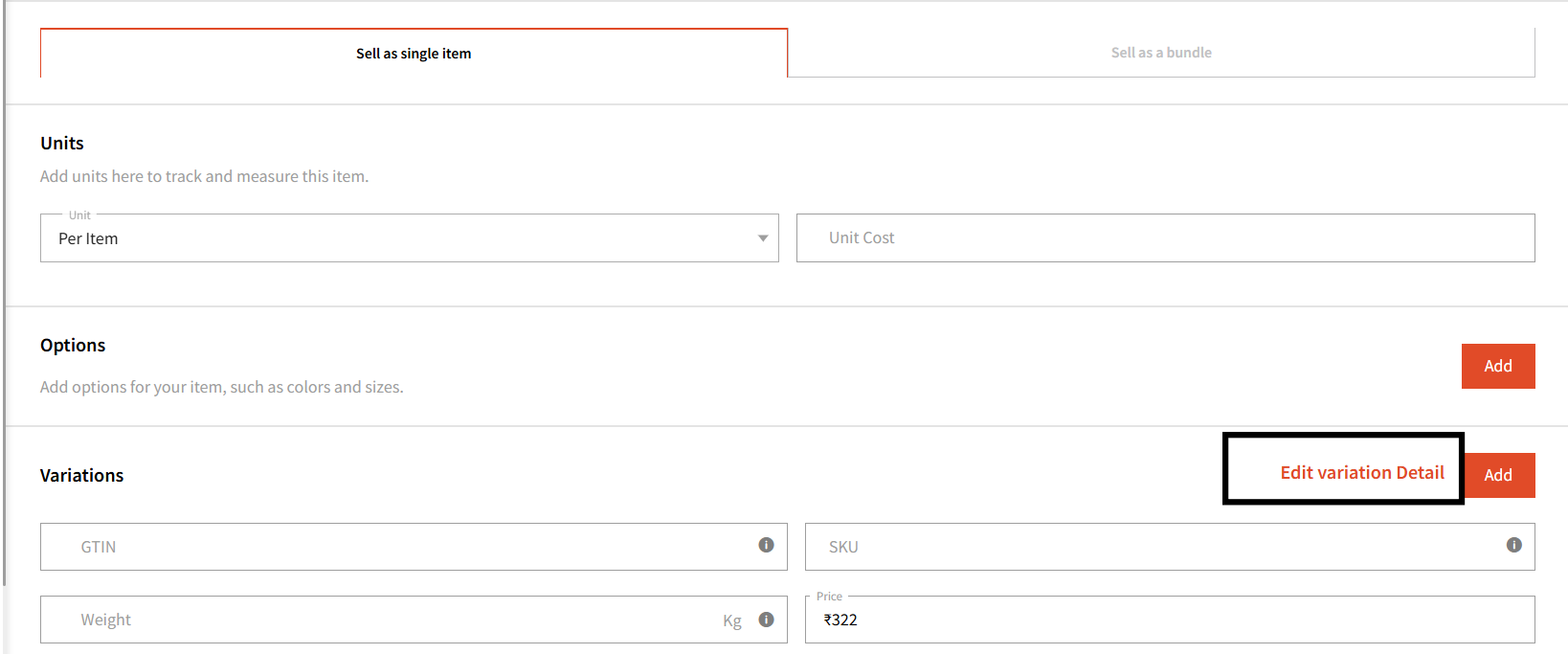
Then click 'Track Item Stock'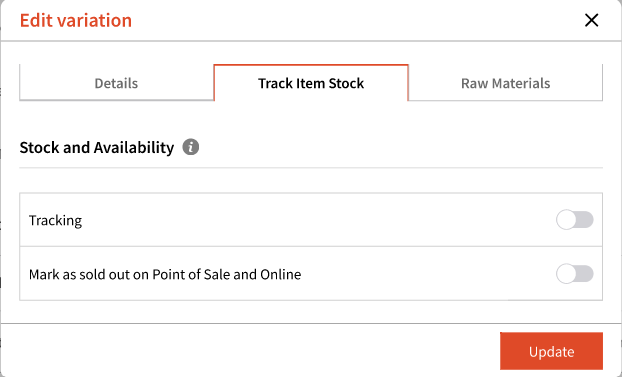
If you have configured Options for an item, you can simply click 'Manage' to access the Item stock settings. 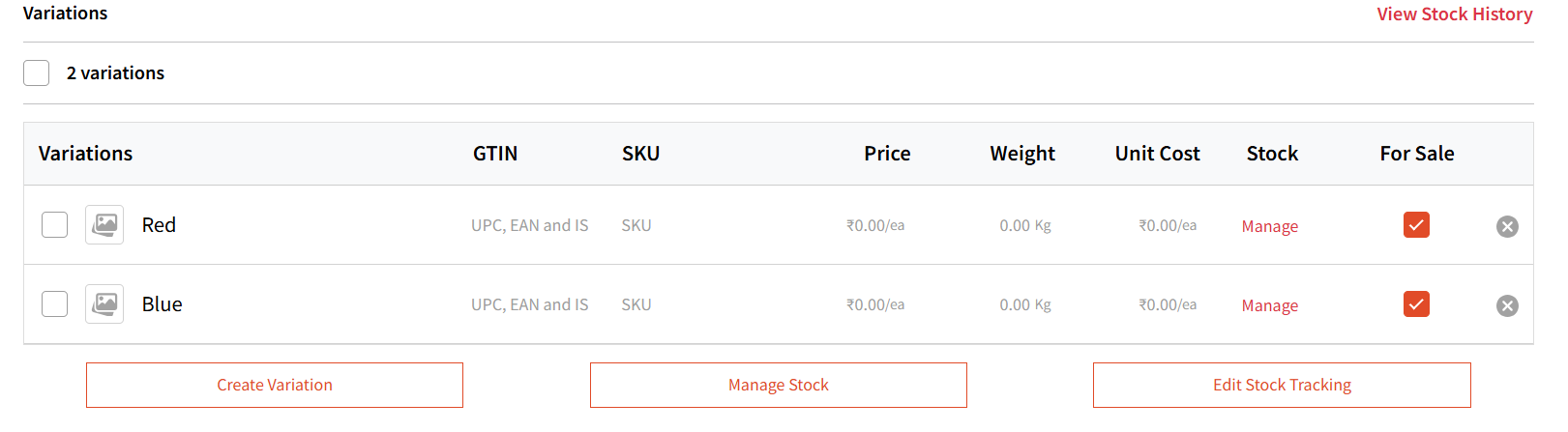
If 'Sell as Single Item' with no Options configured, here's how you can add Stock Tracking:
Turn on 'Tracking' which will enable you to add stock for this item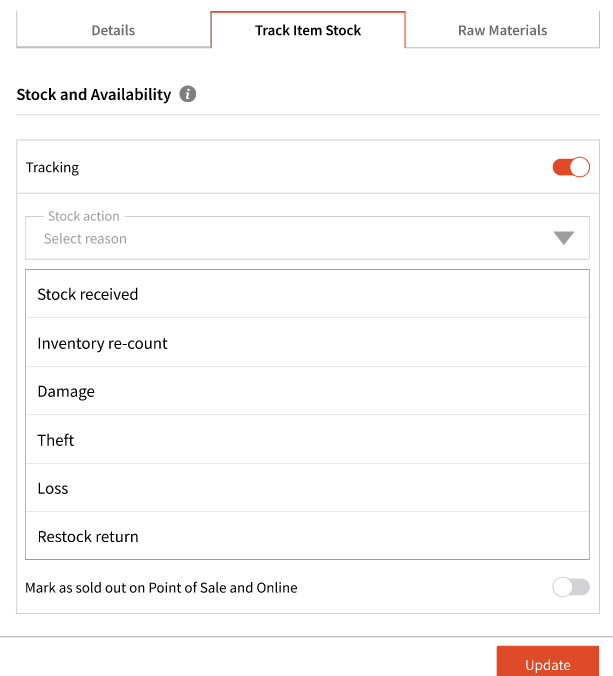
Here, you can select the reason such as:
Stock Received
Damage
Loss
Inventory re-count
Theft
Restock Return
Note: Selecting Damage, Loss, Theft, and Restock Return will decrease your stock count.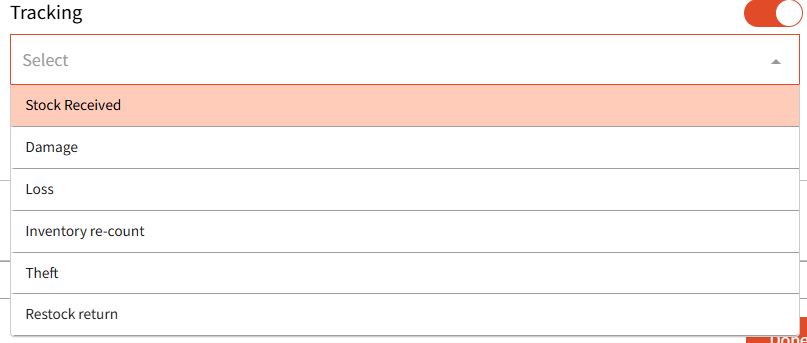
You can even enter your Unit Cost for this item here: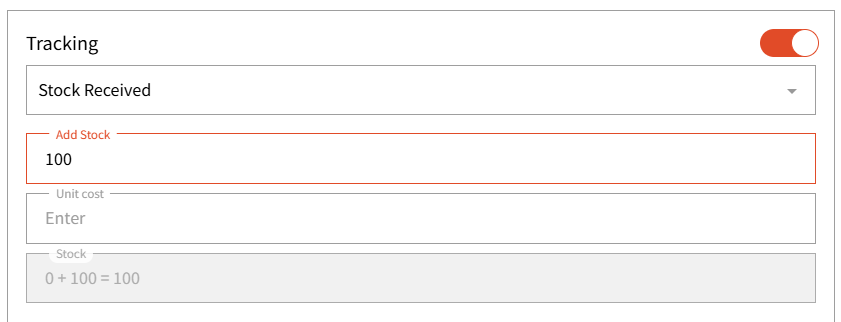
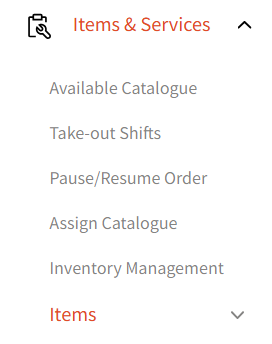
Any changes to the existing stock can also be tracked under 'Inventory Management' tab
Note: This tab is only available on web.
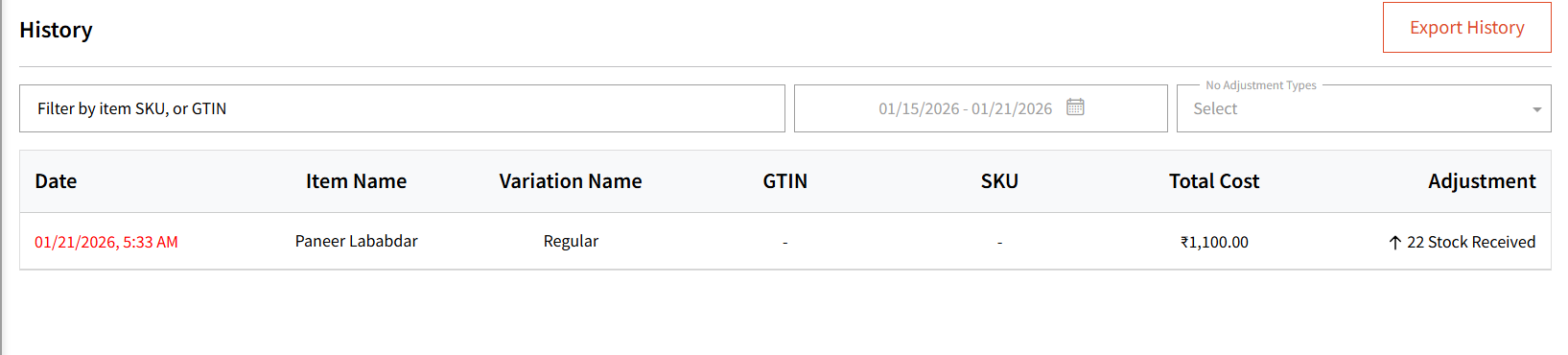
You can filter items by SKU, name, or GTIN here.
You can even filter by the stock reason and export history based on your filters.
After clicking 'Export', a CSV will be downloaded with the stock information.
Low Stock Alerts
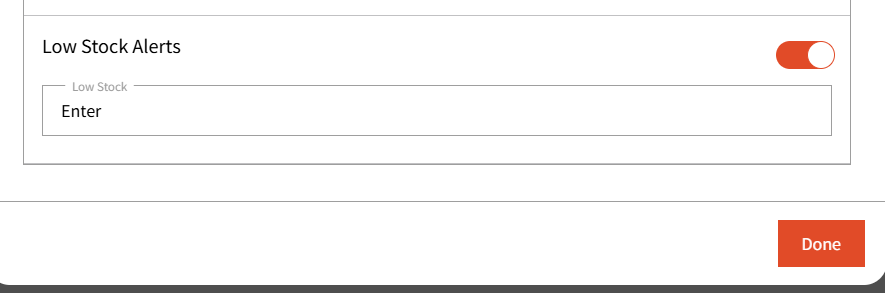
Here, you can set the Low Stock threshold at which you’d like to receive an alert. For example, if you set the low stock alert to 20 for this item and the current stock is 40, you’ll be notified once 20 units have been sold through the POS system.
For now, we will notify the admin via email for any low stock alerts.