
Note: This tab is only available on web.
Under Options listed under Items in 'Items and Services' section of the POS, you can create Option Sets. 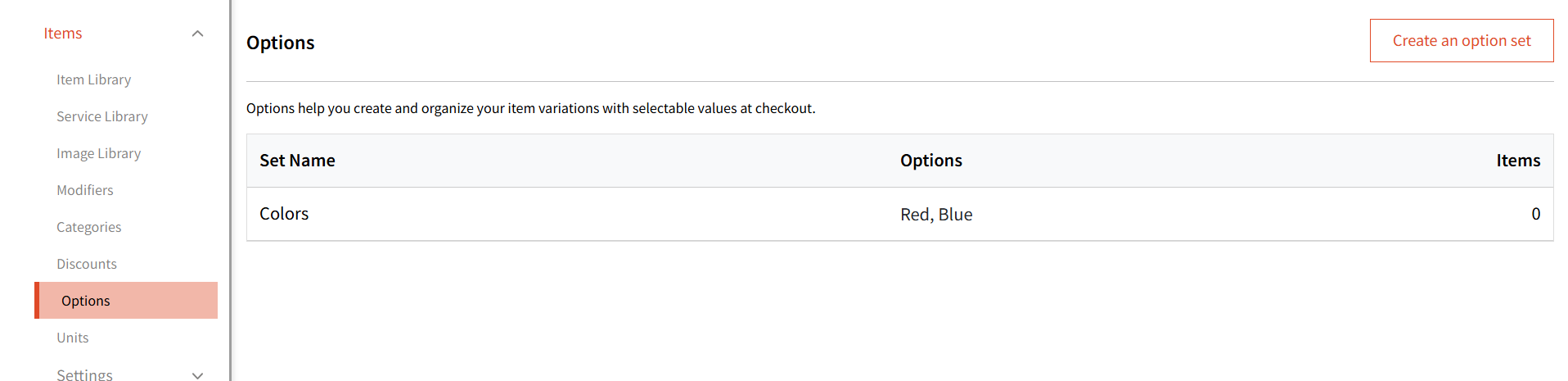
Click the 'Create an option set' to add the name of the Option set, followed by your choice of the option items under that set. You can even choose if you wish to add different colors to the option set items by selecting the 'Text and Color' option. 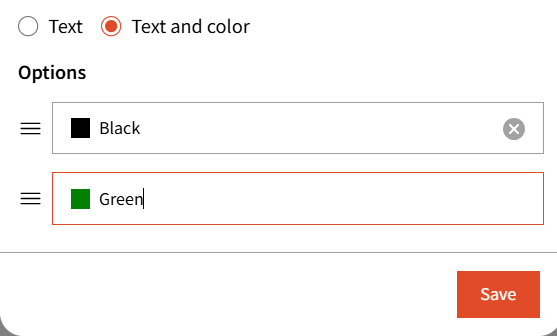
If your option set item name is a color, the system will auto-detect and add that color. For example, if adding colors for a shirt (item), you can add an Option Set called 'Colors'. When adding 'Black' and 'Green' you will notice that the colors auto-populate (as shown above).
Once created, you can attach these Options Sets to your Items by editing an item in the Item Library. 
Note: You can only attach Option Set to items being sold as a single item. If you have chosen 'Sell as a Bundle', then Option Sets cannot be applied.