
You can manage your orders from the 'Dashboard' screen. This is the starting point for the Order Management module.
Depending on your organization type, the view will look like this:
For
1. Food and Dining
2. Food and Drinks
Your Dashboard will look like this:
These are the tables configured in the 'Alert' module. The configured Alert statuses will also showcase on top. For example: 'Occupied', 'Reserved'.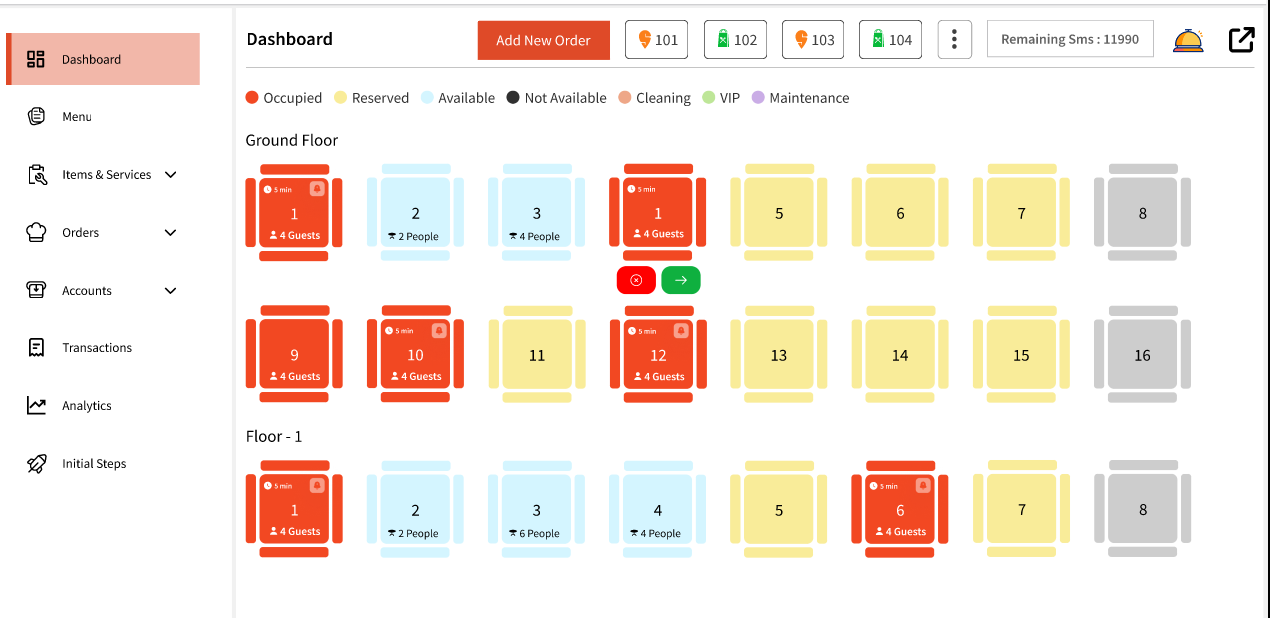
Your online orders will also show on top. Note: Currently, we don't support online orders or orders through 3rd party online vendors. We are working on getting this feature ready for you. 
Similar to the Alert module, you can track Table Requests. On the POS Dashboard, you can click the icon highlighted below to view and manage Table Requests: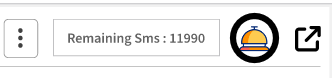
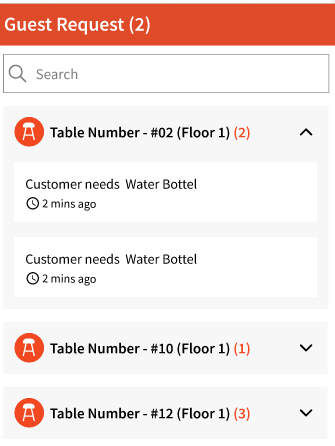
A bell icon will also show on top of tables that have active table requests: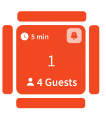
You can click the green arrow to view all the KOTs for a given table.
In case you need to cancel the order, you can click the red button which will require you to enter your password to cancel the order. Note: UserIDs that cancel an order will be tracked. 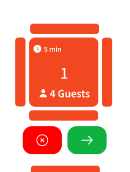
For occupied tables, you can tap and select from the following:
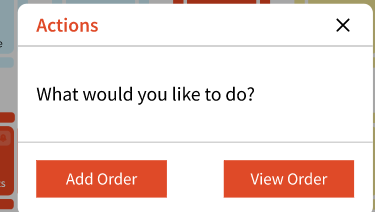
When starting a new order, you can click 'Add Order' which will allow you to choose and add items for your guests from your configured menu:
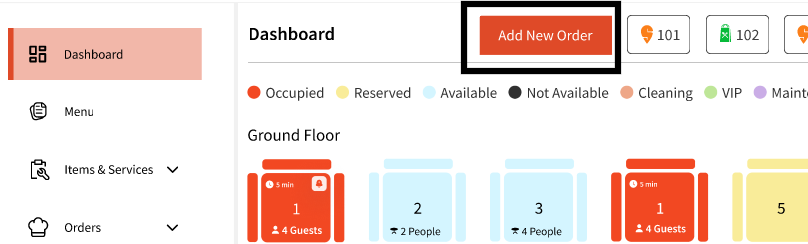
You can also start a new order from the dashboard screen without choosing a table:
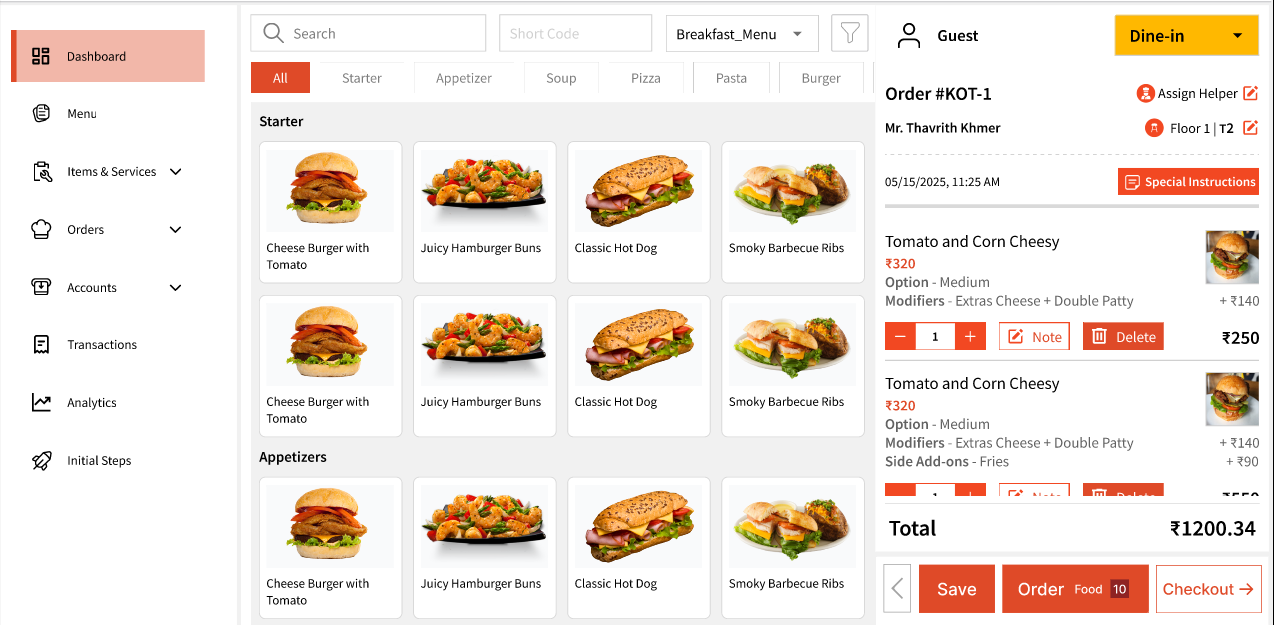
In both cases, you will be redirected to the screen to add items to this order.
You can search for items using the name or even the short code configured at the time of creating the item. You can even change the Menu selected and filter items by categories:

Clicking an item will let you pick from its configured modifiers and options:
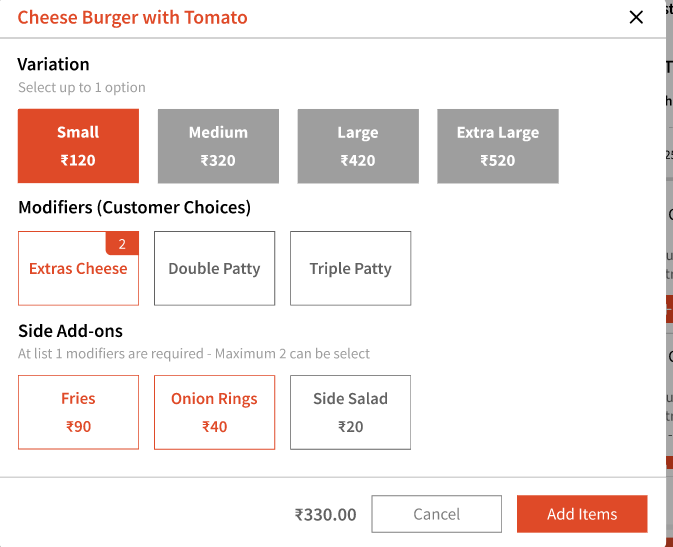
Once you make the selection, you can simply click 'Add Items'.
By default, the order type will be 'Dine-in' for Food organizations and 'In Store' for other organizations.
For 'Dine-In' orders, you can assign a helper to the table, update table numbers and even add guest details to the table.
You can even add 'Special Instructions', so you are able to share this with your kitchen.
You can even add multiple KOTs for 1 dine-in order. For example, let's say Table 2 on Floor 1 ordered appetizers first, you can add all the items they need and click 'Order'. Later, you can add more items and send in another order which will be a separate KOT but will be part of the same order.
With our intuitive design, you can easily manage KOTs and Orders which is covered in the later articles. 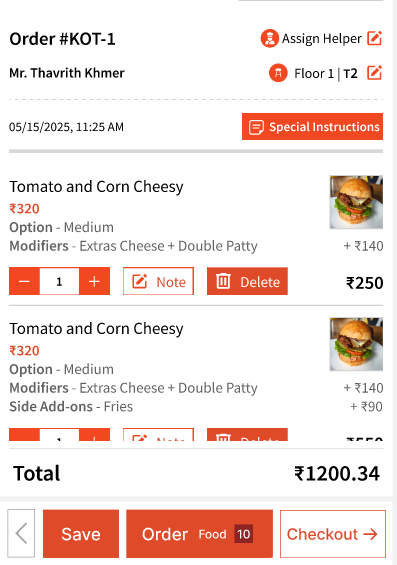
You can even add notes to your individual items if needed: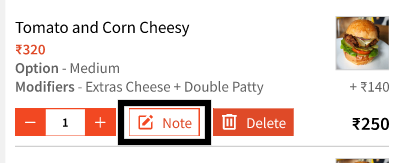
You can even add Guest details using the 'Guest' button. If you have already added details during Waitlist module, then those details will automatically show on this table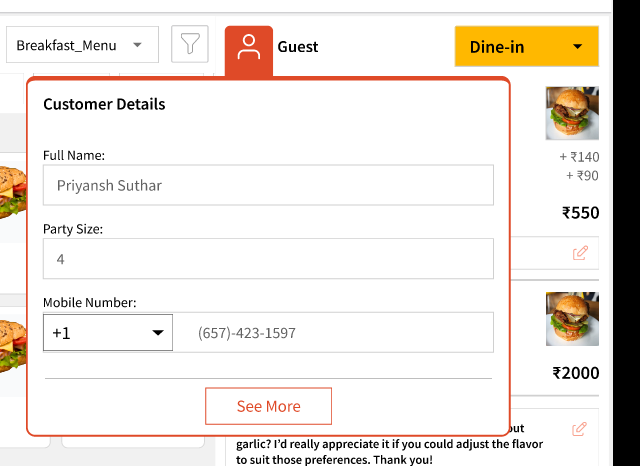
For
1. Beauty and Personal Care
2. Transportation
3. Professional Services
4. Charities, Education, Membership
5. Home and Repair
6. Fitness
7. Healthcare
8. Pet Care
9. Casual Use
10. Retail
11. Leisure and Entertainment
Your Dashboard will look like this:
Note: Your configured items will show on this screen. The screenshot below is just an example.
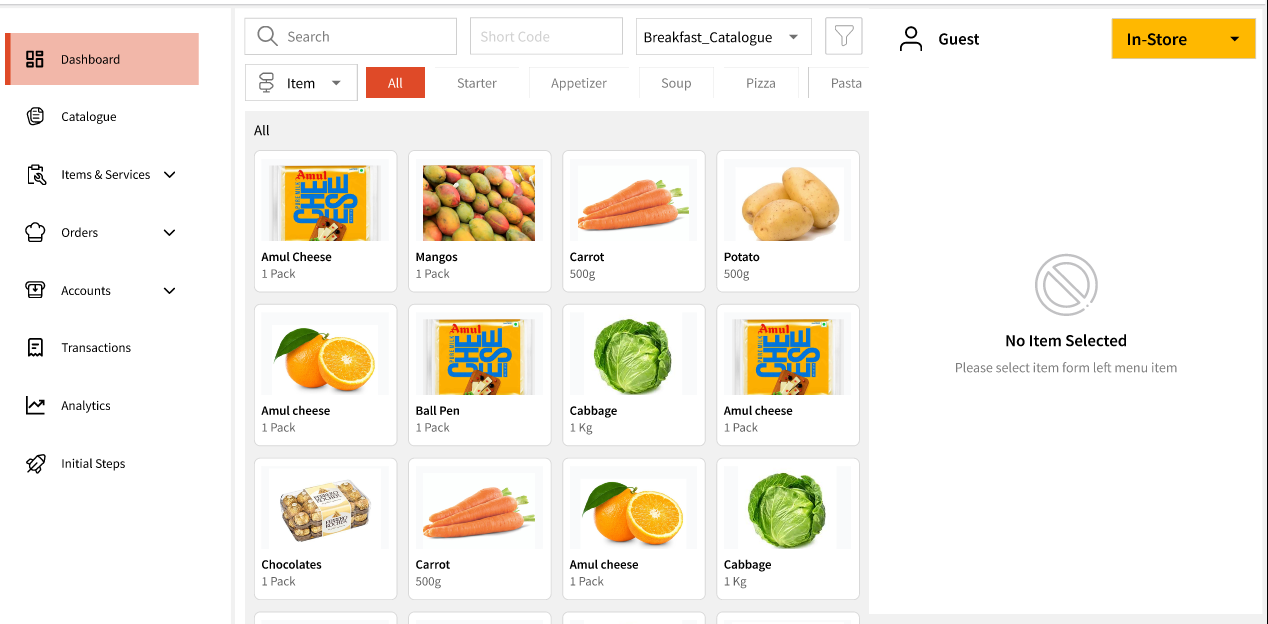
Order Types are covered in the next set of articles.