
Depending on your organization type, you will see Order Types defined as the following:
For:
1. Food and Dining
2. Food and Drinks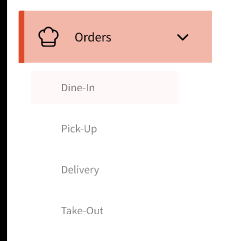
For:
1. Beauty and Personal Care
2. Transportation
3. Professional Services
4. Charities, Education, Membership
5. Home and Repair
6. Fitness
7. Healthcare
8. Pet Care
9. Casual Use
10. Retail
11. Leisure and Entertainment 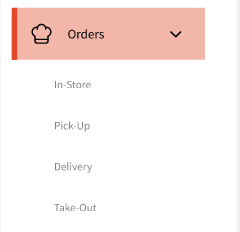
You can select these types when taking an order. Depending on the order type, you can manage orders differently. For example, Delivery, Pick-up and Take-out types will require you to select if the order is for now or for a later time. 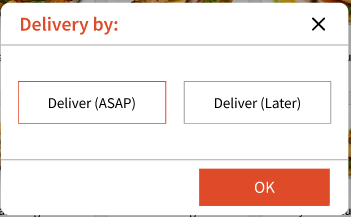
For 'Dine-In' or 'ASAP' orders, once you put it in, the order status changes to 'In Progress'. After that, once the order is ready, you can manually update the status in the 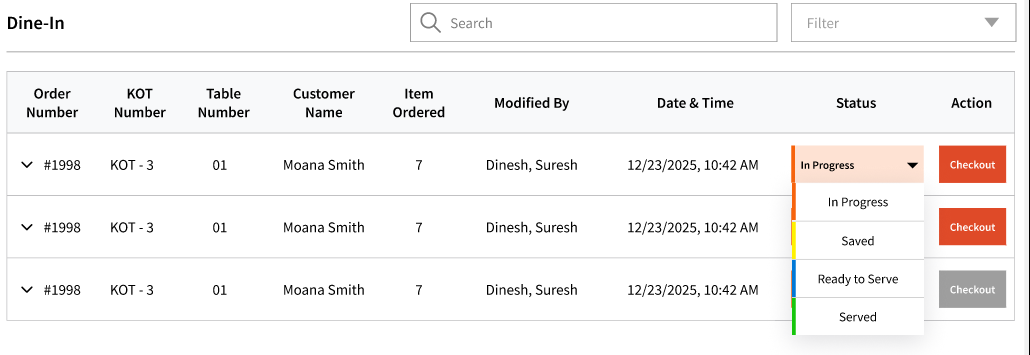
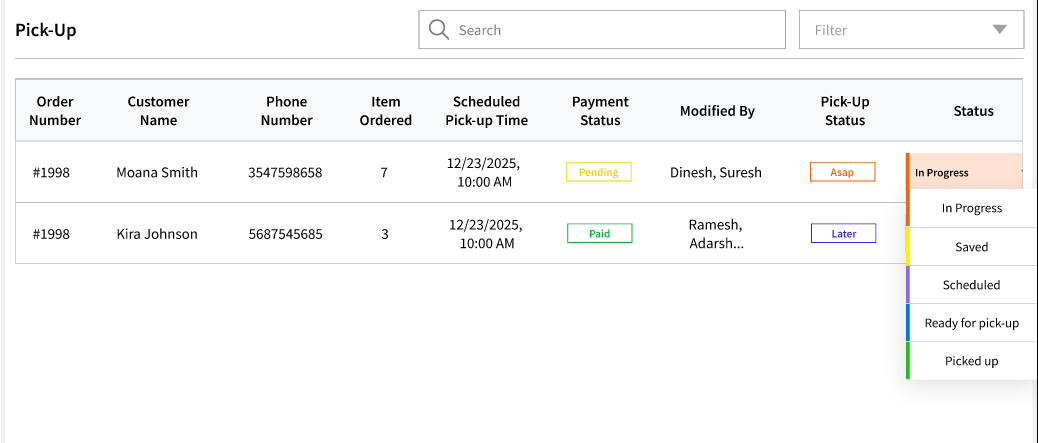
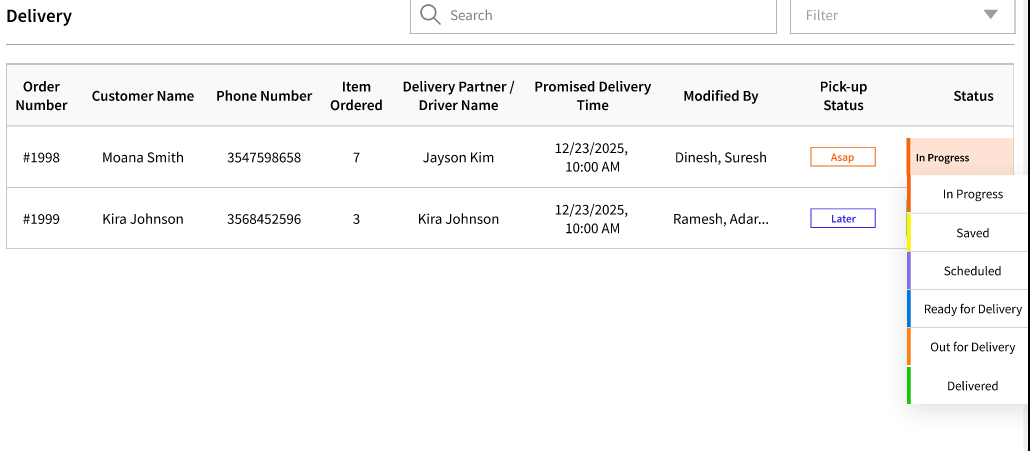
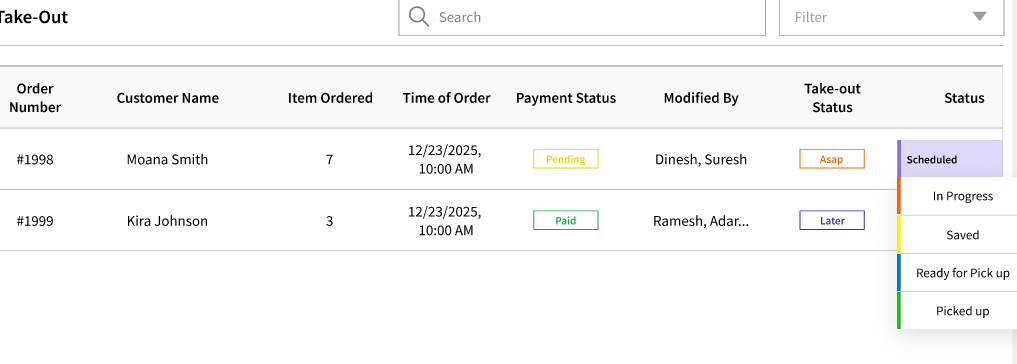
To update a status manually, you can go the relevant tab under 'Orders' for example, you can click on 'Dine-in' orders, and then change the status.
Depending on the order type, the statuses will vary. Above are some screenshots.
Note: For 'Later' orders, the status will show as 'Scheduled'. For example, if I add an order to be picked up at 5:00PM later today, it will show as 'Scheduled'. Once the order is being worked on, you can manually change it to 'In Progress'.
Payment status is also shown to help keep a track. Once checked out, the order will show for some time and then will be removed from this view.
You can even track KOTs for 'Dine-In' or 'In-Store' orders by clicking the order that will show you all the associated KOTs.
As a quick reminder, KOTs are parts of orders. For example, if the dining in party ordered appetizers first, you can submit those as KOT#1 under Order#1. Once they are ready to order mains, you can click on the same order and then submit another KOT that will get attached to the same order. 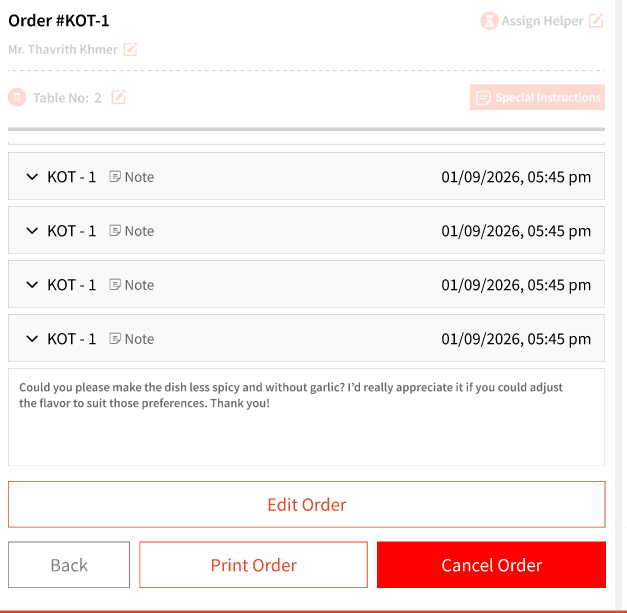
For Delivery order type, you will also be able to assign a helper (in case that's the driver delivering the order)
You can even 'Save' orders if you are not ready to add it but want to start working on it. This saves the order as a 'Draft' and the status will show as 'Saved'. For example, if you start a 'Dine-in' order, you can click 'Save' and this will add the order to 'Dine-in' but keep the status as 'Saved'.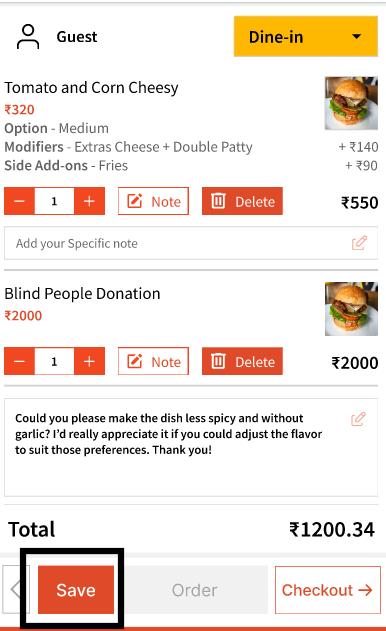
Once ready to submit the order, you can simply open that order and click 'Order' to submit it.