
Once you are ready to checkout a guest, you can click on the order from the 'Orders' screen and that will show you the following view (view will vary depending on your organization type):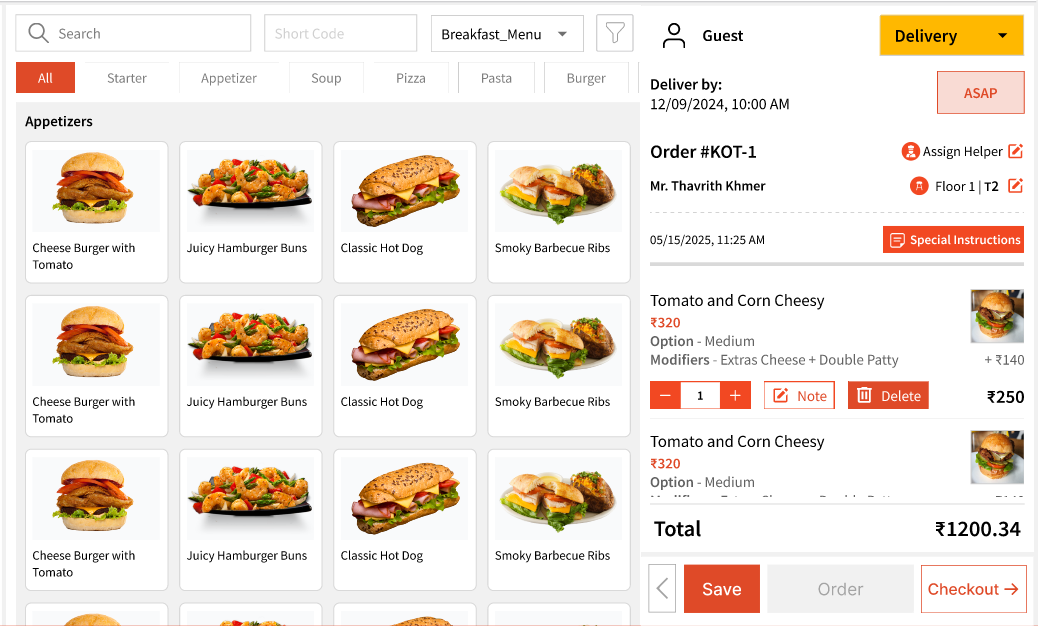
Another way to do checkout is through the 'Checkout' button listed on the 'Orders' page: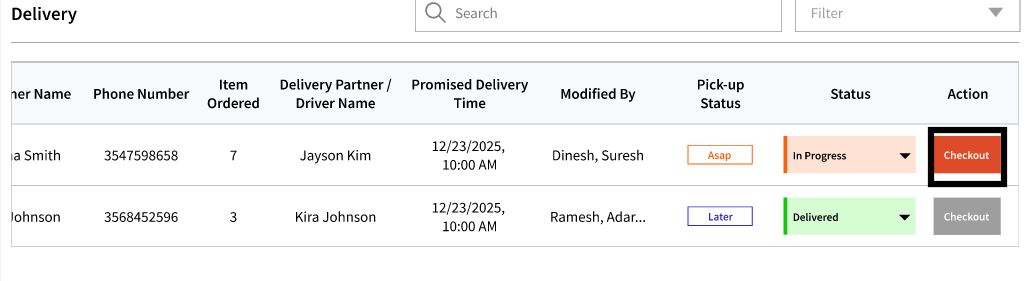
Depending on your region and organization type, you will see payment options on this screen: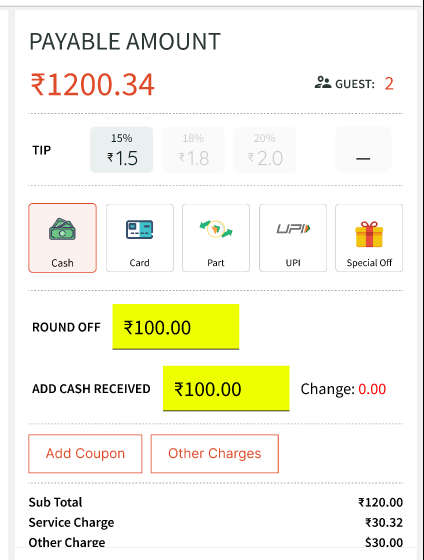
You can then add the tip amount that guest would like to pay. Note: This view is for the admin side, we currently don't have a view for guest only but you may have them input the tip amount on this view. We are actively working on adding a guest view of the menu and ordering.
Before collecting the payment, you can add other charges and/or discount codes using the following:
Other charges will show you any taxes or other charges you have configured under My Account and also give you an option to add custom charges. For example, a delivery charge.
Payment Types:
Note: We currently don't support Partial Payment methods for one transaction but we are actively working on adding this feature.
1. Cash: You can 'Round off' the Total if you wish to. For example, if the total is $121, you have the ability to round it off to $120 using the 'Round Off' section where you can enter the amount:
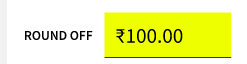
You can add the Cash Received which will show you the change you need to provide:
Once done, you can hit 'Validate Payment' to complete the transaction.
Once you click 'Validate Payment', you will be asked to select which cash drawer you would like this transaction to be charged from. This will help you keep track of the cash transactions for that particular cash drawer. 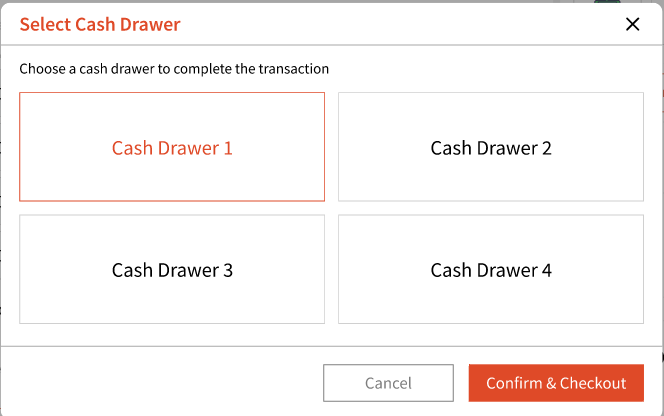
Note: You must configure Cash Drawers under Accounts in My Account first.
As part of Initial Steps, you will be asked to configure Cash Drawers when you onboard. This is covered in Detail in the 'Accounts' article.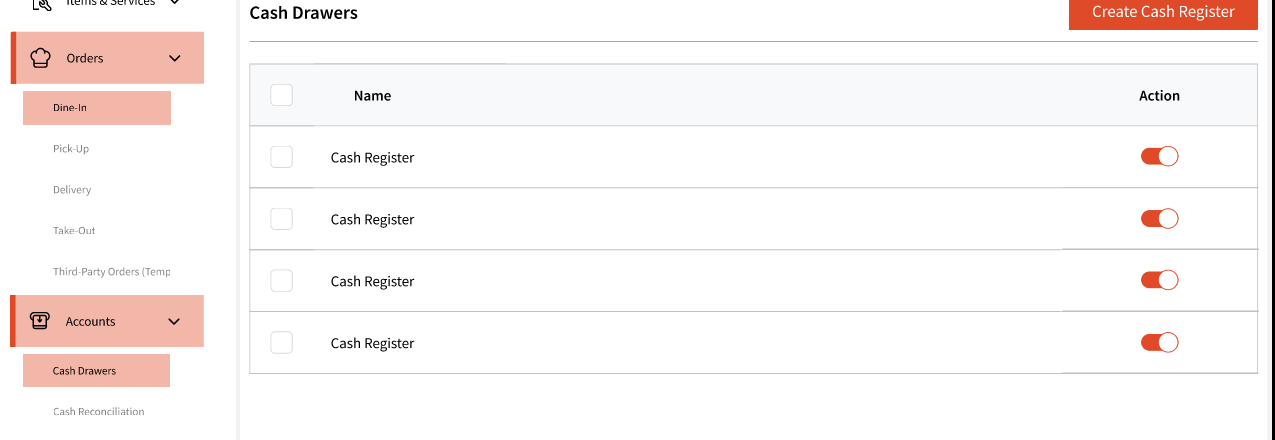
2. Card: You can simply click 'Validate Payment' once you are ready to charge the customer which will direct you to the payment provider (this will vary depending on your region).
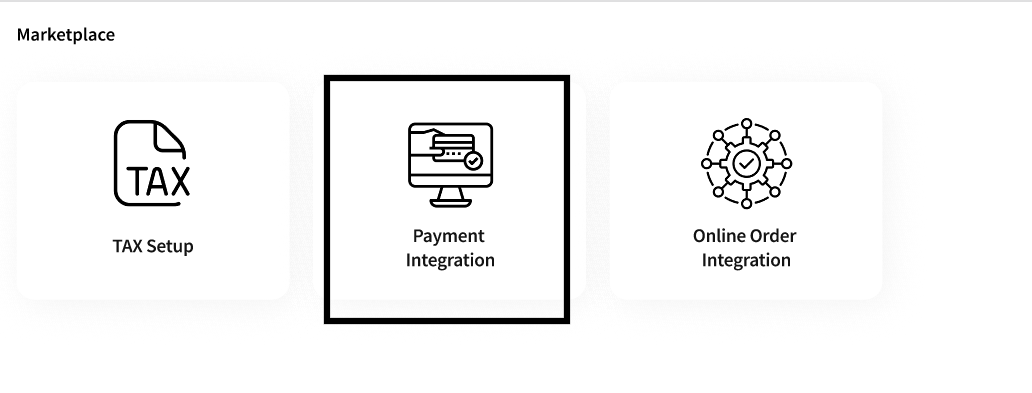
Note: You must have payment integration setup completed to start charging guests using card. You will be prompted to complete this step when you login for the first time. These settings can be found under My Account -> Marketplace -> Payment Integration
Note: For now, our team will assist you with this integration, as we are still in the early phases of our launch. We are working toward making this process self-sufficient in later phases.
For USA: We will help you get setup with DataCap payment provider.
For India: We will help you get setup with RazorPay payment provider.
3. For India, you can also collect payments using UPI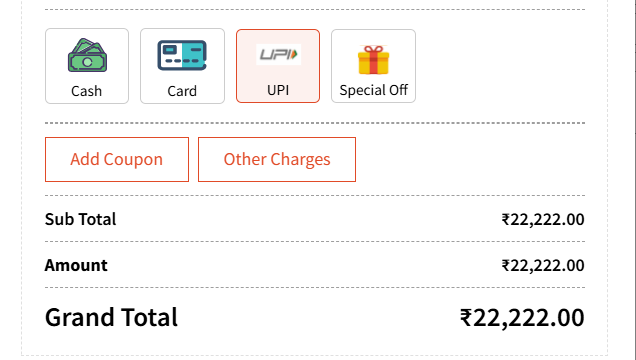
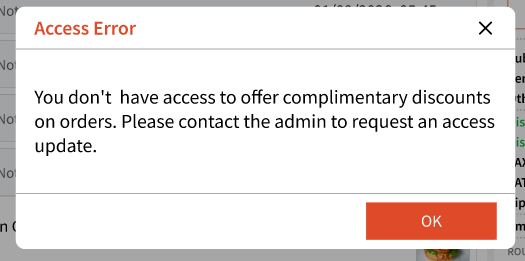
4, Lastly, Admins can give 'Special Off' to a guest if needed that will bring the amount to $0/Rs.0.
Others will be shown an error message if they click on 'Special Off'
Once the transaction is complete or has failed, they will be shown in the 'Transactions' tab.
Transactions are covered in a separate article.