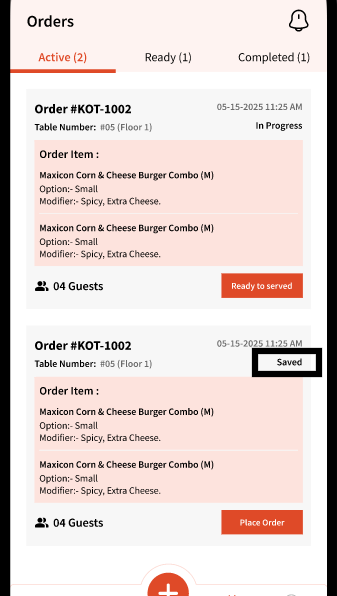
Depending on your organization type, users will see different options in the Staff app.
This article covers the flow for the following organizations:
1. Food and Dining
2. Food and Drink
Note: To use the Staff app for these organization type, please ensure at least one floor is set up and tables are added in the Alert module
Note: Staff app only works for Dine-In Orders
You will see the following options: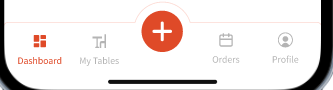
You can view all the floors and tables configured in the 'Alert' module by clicking 'My Tables'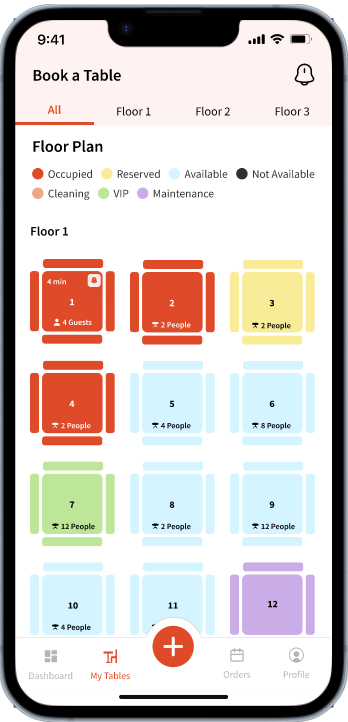
The statutes you set up in the Alert Module will show in this view and the tables will reflect the color of those statutes.
To take a new order, you can simply click an 'Available' table that will allow you to assign a table to the guest.
Guests listed in your Waitlist module will showcase here. 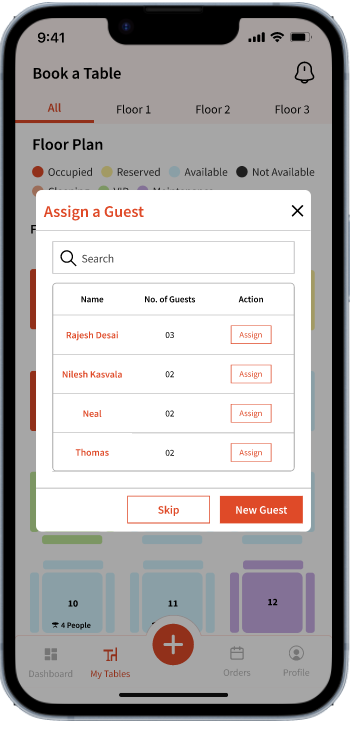
If the guest is not part of the Waitlist, you can simply add them using 'New Guest' which will ask you to enter some basic details of the guest. 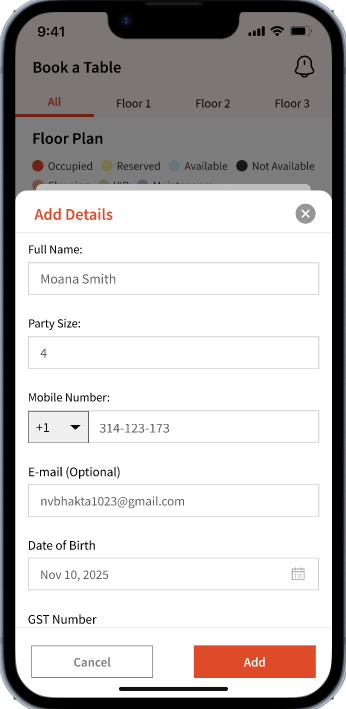
Or you could simply select 'Skip' in case you don't want to capture guest details for the order. 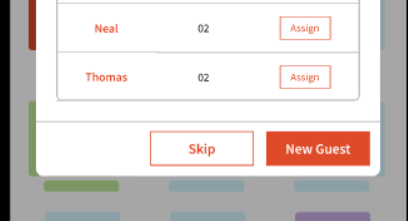
If you wish to first take the order, you can also start the flow by clicking the '+' button that will allow you to add items:
Then, user can start adding items: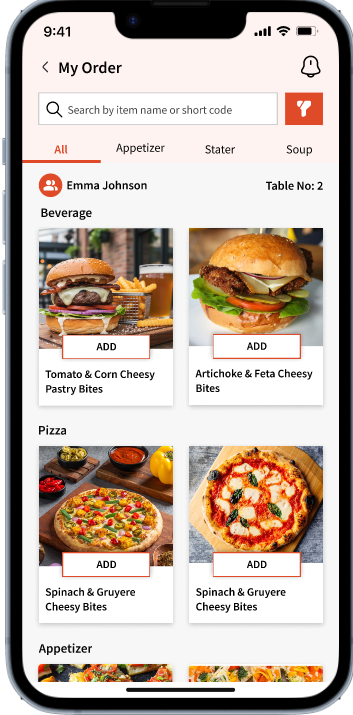
You can also edit the table number by clicking the table number on top. It will allow you to change the table: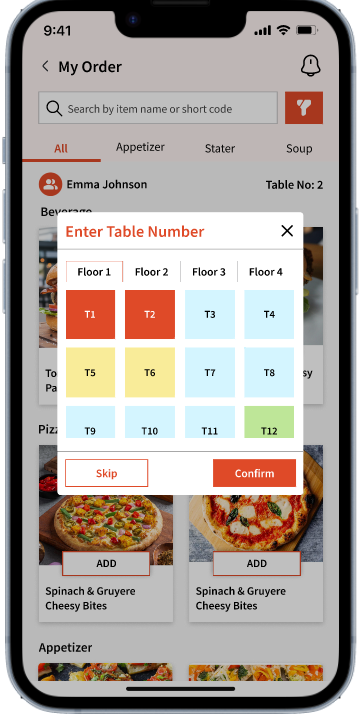
Similar to the web view, you can search for items using name or short code. You can also filter items using categories.
Additionally, the filter can be used to switch between item types and 'Contains the following'. This would be reflective of the settings you configured when adding the item in the POS module. 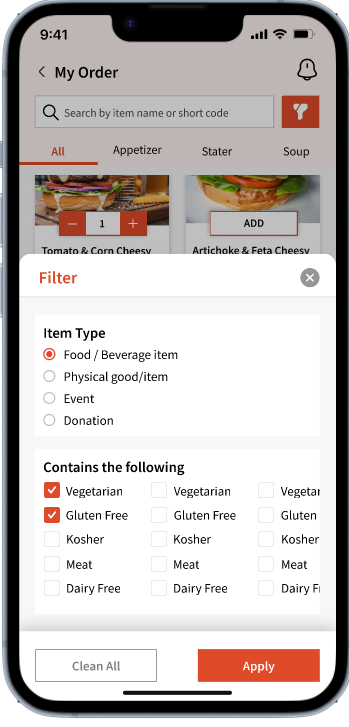
Once you are ready to add an item to the order, just click 'Add' which will let you select any modifiers, options and also add quantity. 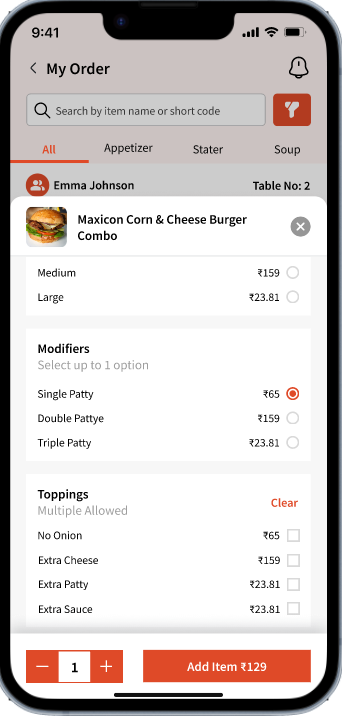
Once added and ready to order, you can simply hit 'Confirm Order'
This will take you to the Confirm Order screen where you can edit from any of the following before submitting:
1. Guest Name
2. Table Number
3. Items
User can also add 'Special Instructions' for this order that the guest wants to add.
User can also add per item specific notes by swiping left on an item on the 'Confirm Orders' screen: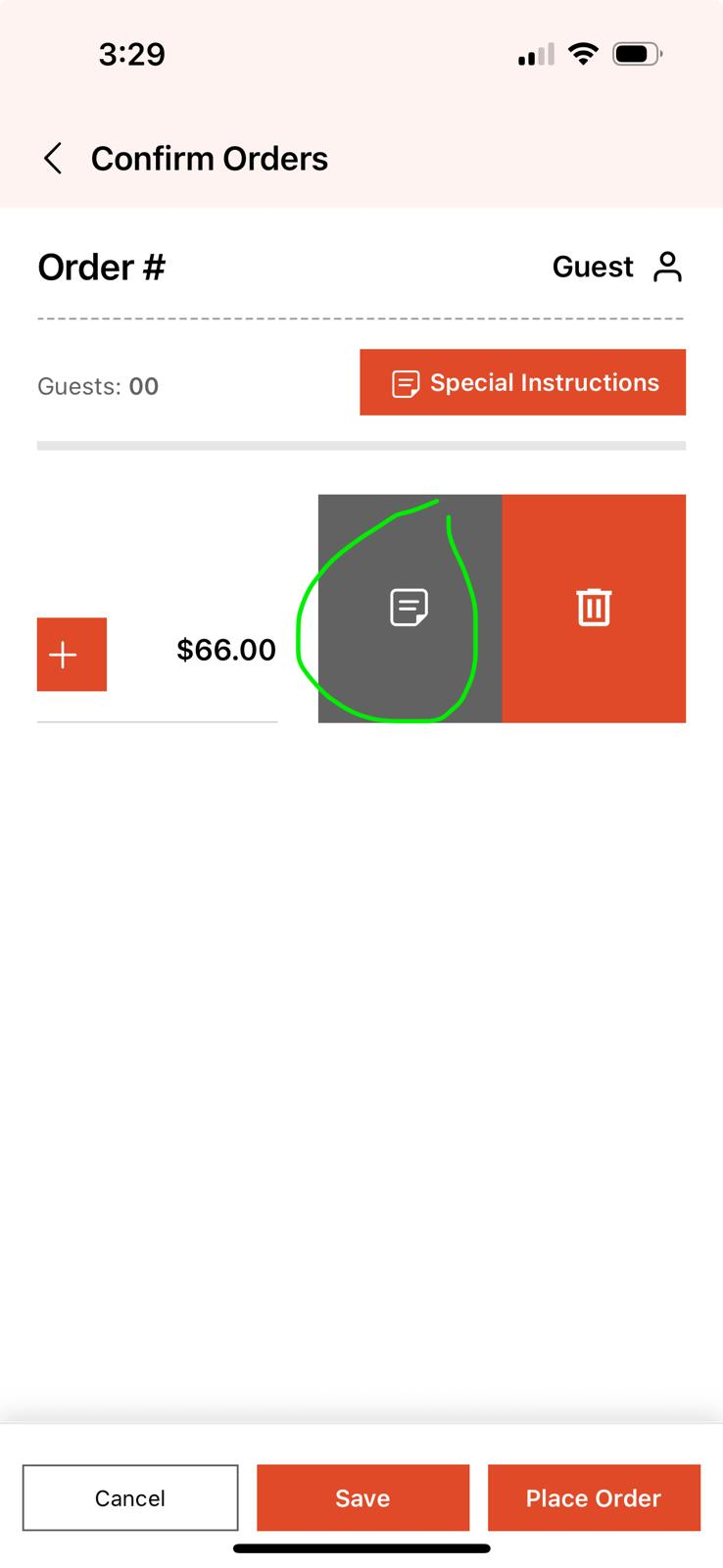
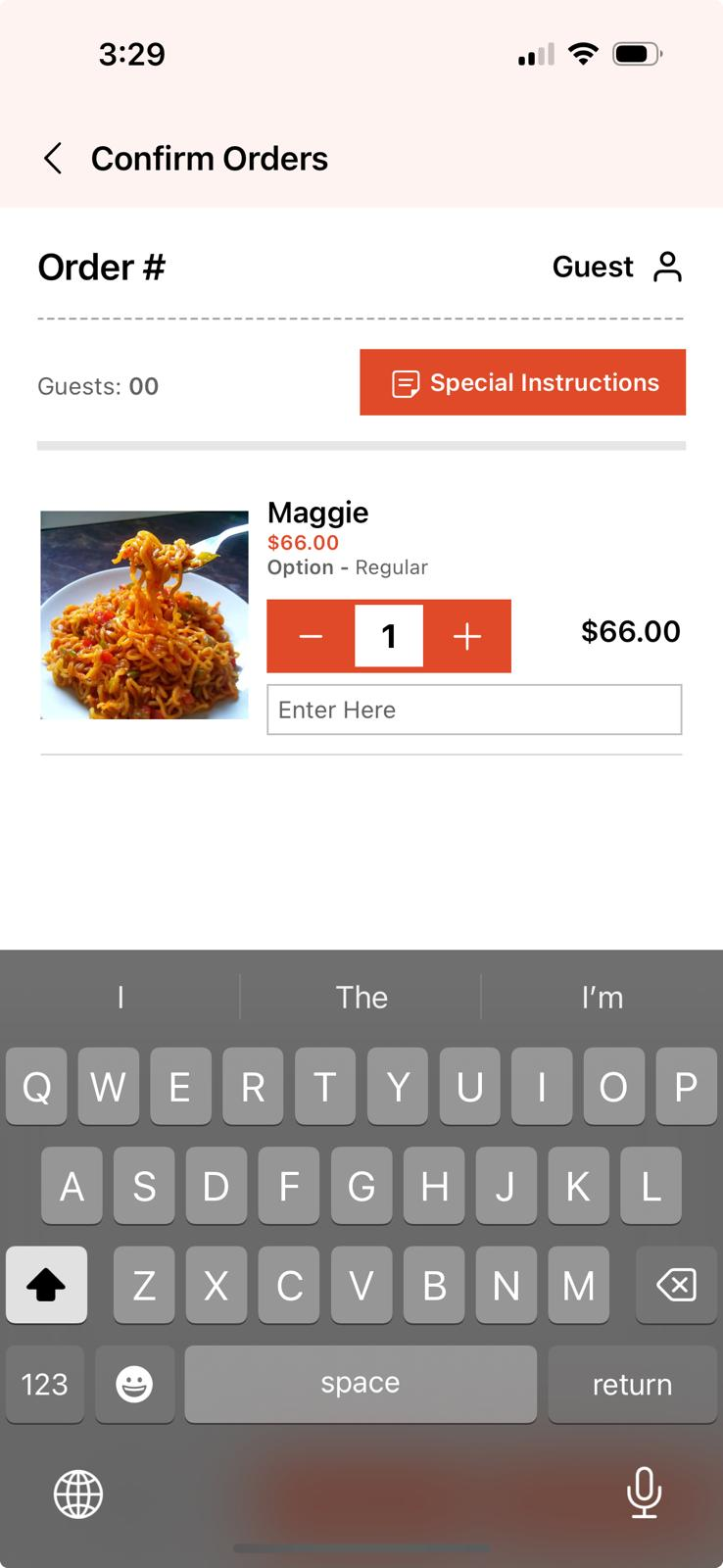
Once you are ready to submit the order to be prepared, you can simply hit 'Place Order'
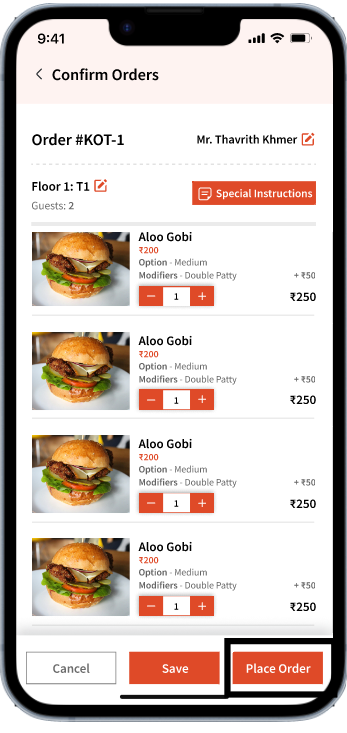
This will move the order to 'In Progress' state

Before placing the order, the user can hit 'Save' that will move this order to 'Orders' and show the status as 'Saved'.
Once ready, you can click the order again to start.