Depending on your organization type, users will see different options in the Staff app.
This article covers the flow for the following organizations:
1. Retail
2. Leisure and Entertainment
3. Beauty and Personal Care
4. Transportation
5. Professional Services
6. Charities, Education, Membership
7. Home and Repair
8. Fitness
9. Health Care
10. Pet Care
11. Casual Use
You can start a new order by simply clicking the '+' button located in the bottom: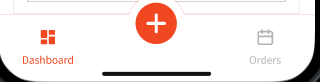
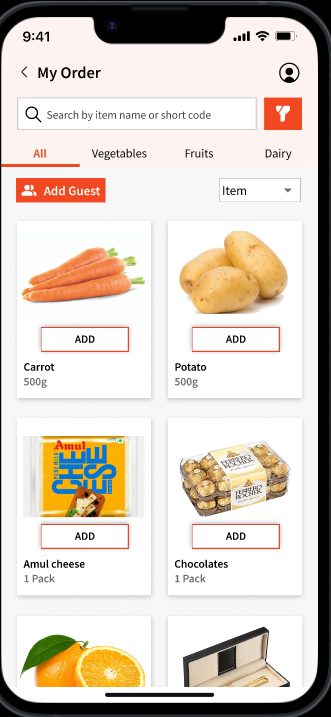
You can also select from Options and Modifiers (if any) configured when you click 'Add' 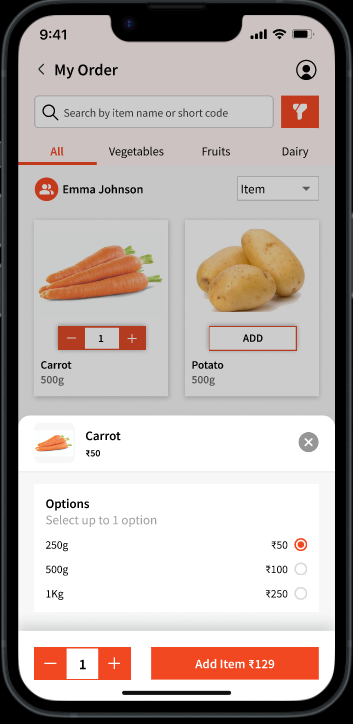
You can adjust the quantity and once ready, you can click 'Add Item'
User can:
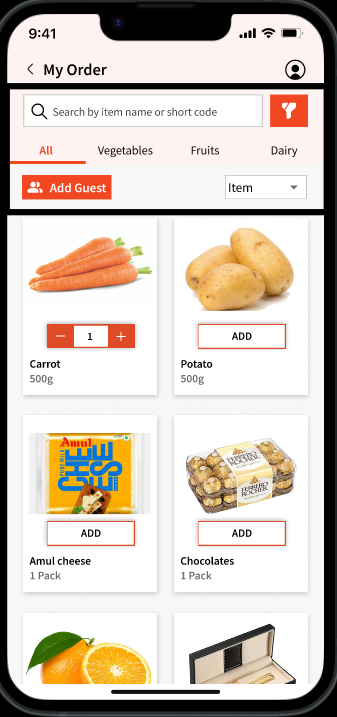
1. Also attach a guest information to the order by clicking 'Add Guest'
2. Filter between Items and Services using the dropdown on the right.
3. Filter categories as well as search for item and service names.
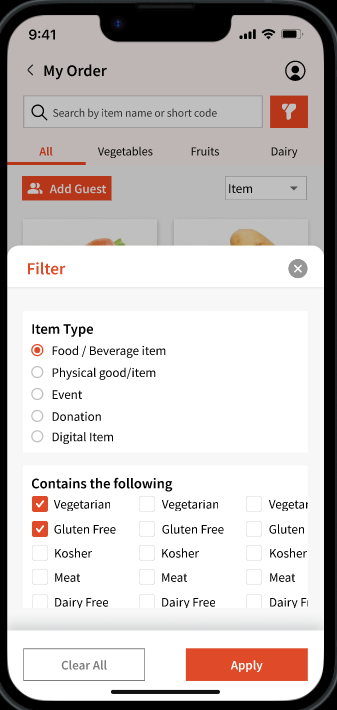
4. Filter icon to filter by 'Item Types' and 'Contains the following'. This would be reflective of the settings you configured when adding the item in the POS module.
Once added and ready to order, you can simply hit 'Confirm Order'. Once done, the order will start showcasing under 'Orders' and move the order to 'In Progress'
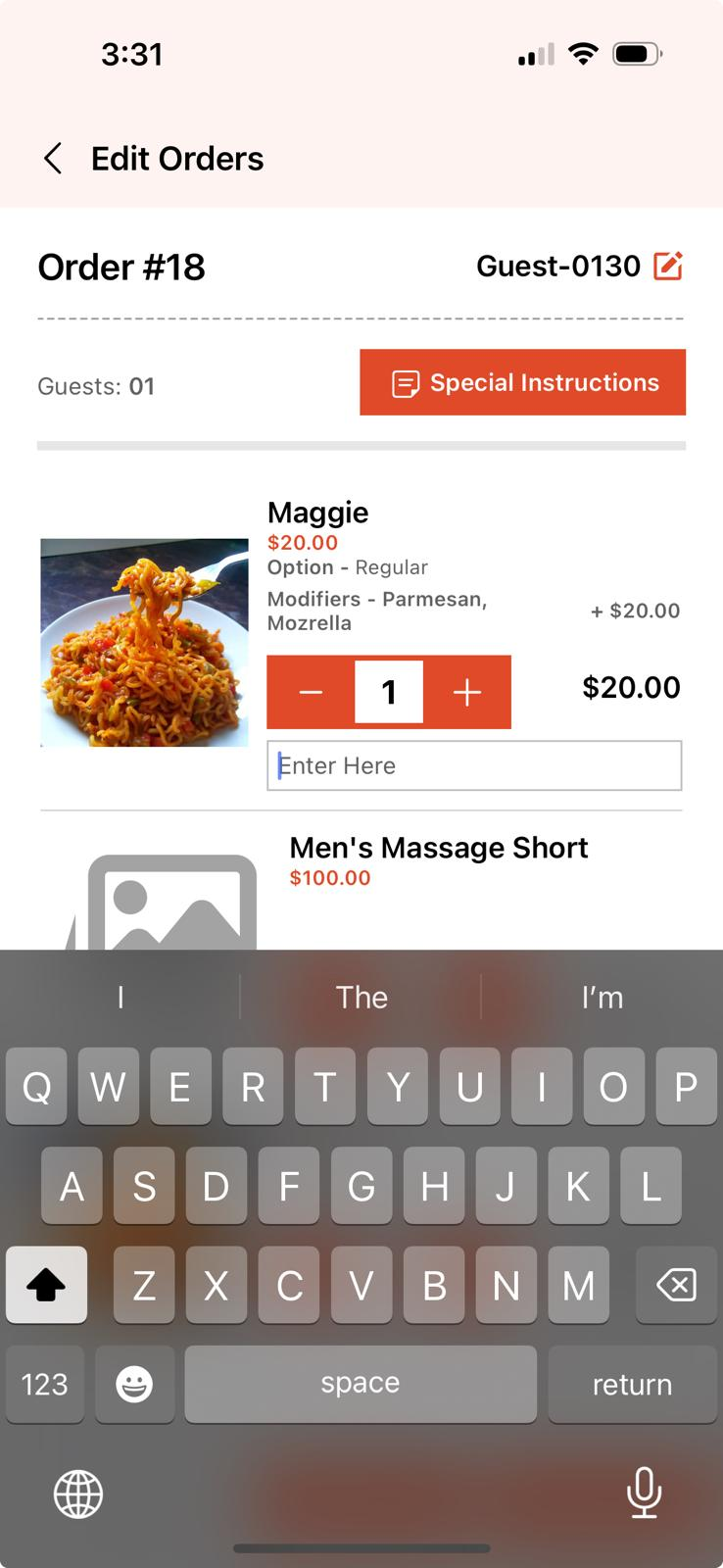
User can also add 'Special Instructions' for this order that the guest wants to add. Special instructions can either be added for a particular item or for the entire order.
User can also edit order before submitting it using the 'Edit Order' button.
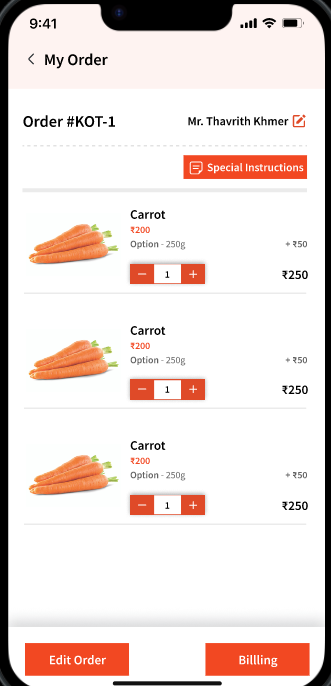
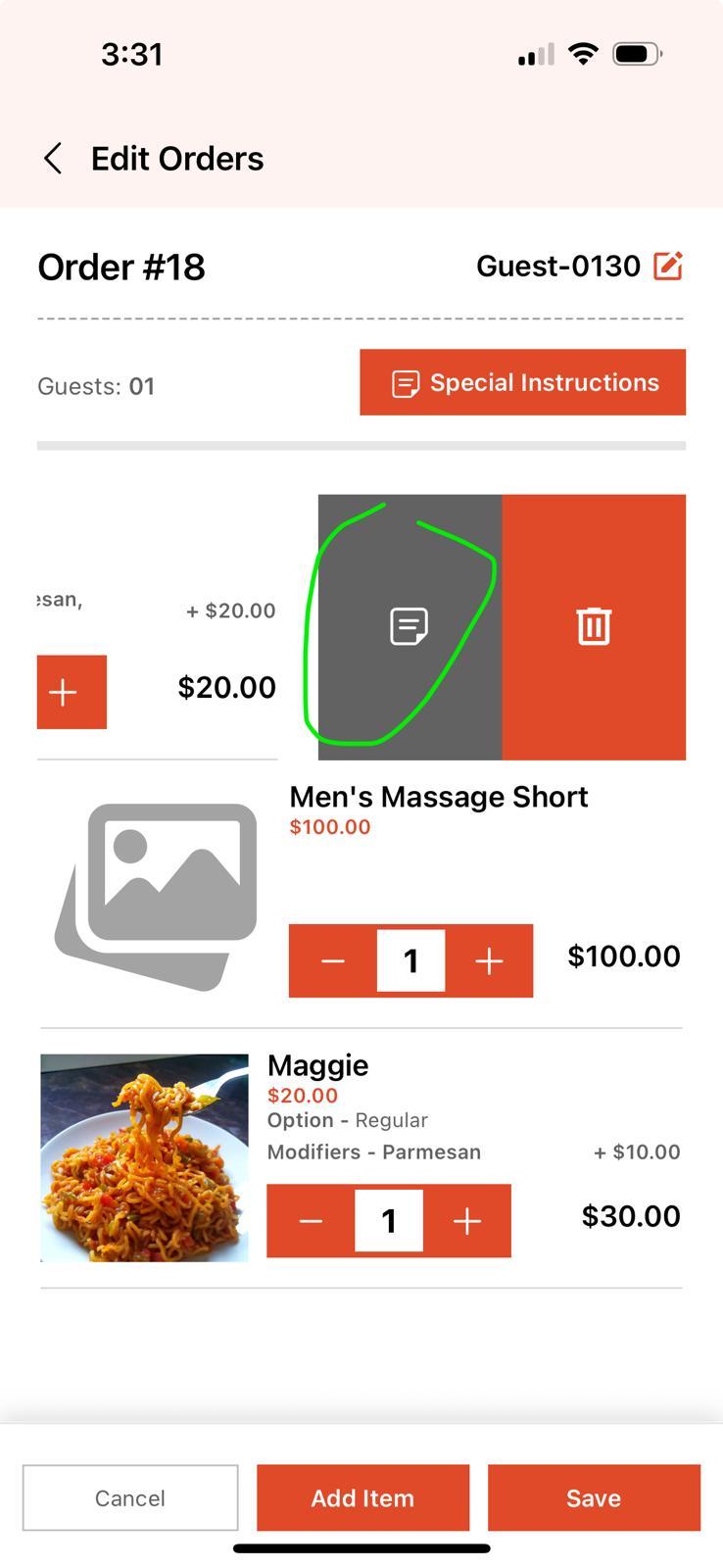
User can also add per item specific notes by swiping left on an item on the 'Orders' screen where all the items/services you've added show: