Once you have submitted an order or saved it, the order will start showing in the 'Orders' tab: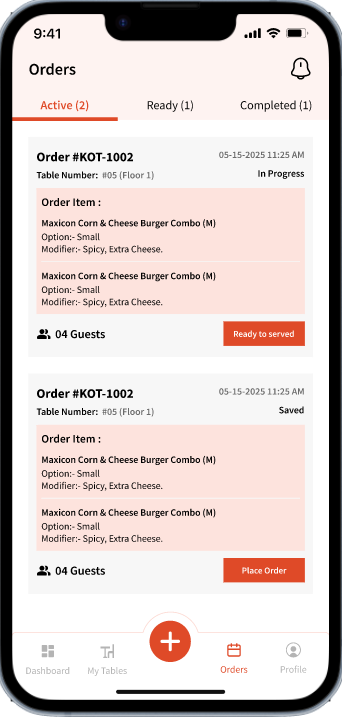
For any 'In-Progress' order, user can manually mark it as 'Ready to serve' once it is ready. Clicking this will move the order to the 'Ready' sub-tab located in the 'Orders' tab: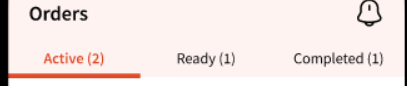
Once served, user can simply click 'Served'. Once clicked, the order will then move to the 'Completed' tab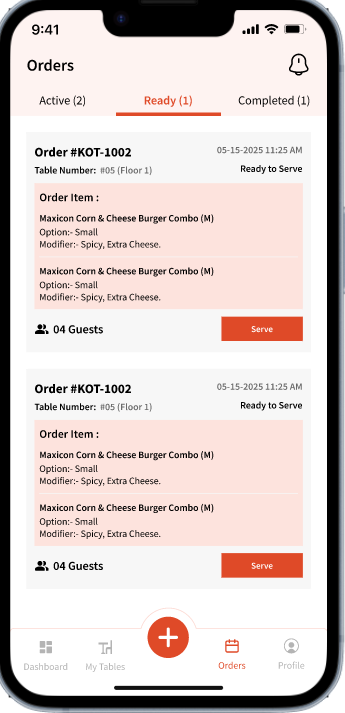
Once you are ready to charge the guest, you can click on the order either using the table that will allow you to view the order or simply click the order from the 'Orders' tab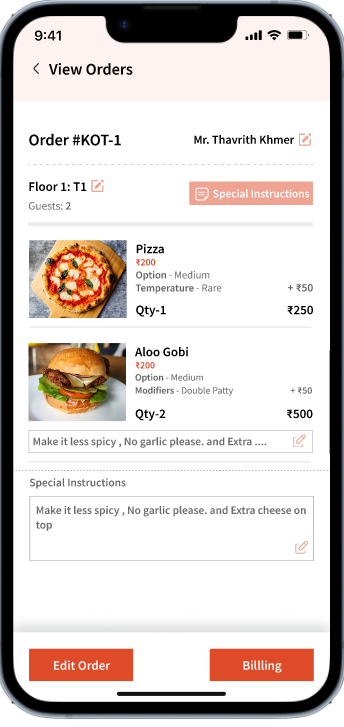 User can either Edit the order or Print order.
Print order will give you the following options: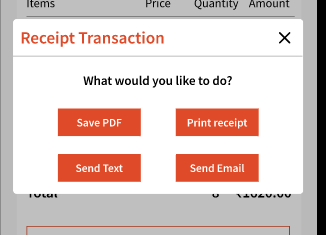
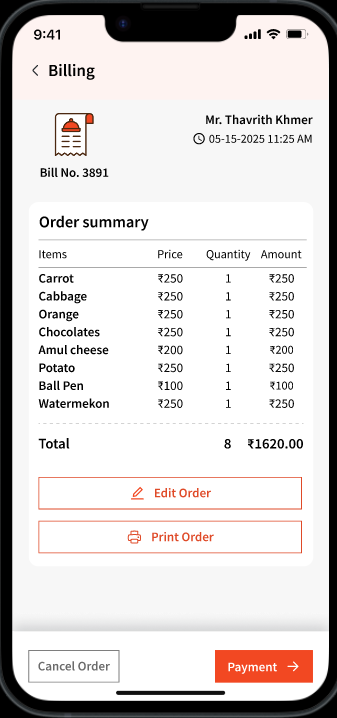
After clicking 'Payment', user can select from payment methods, add tips (if any), apply other charges or discounts.
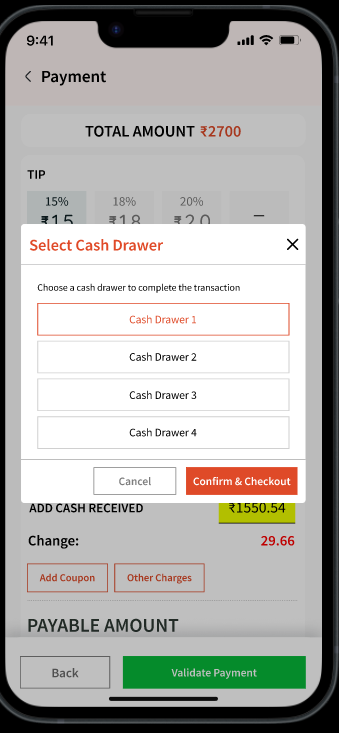
Clicking 'Validate Payment' will allow user to send the payment to the cash drawer you wish to associate this payment to.
Note: All configured and active cash drawers will show in this list. 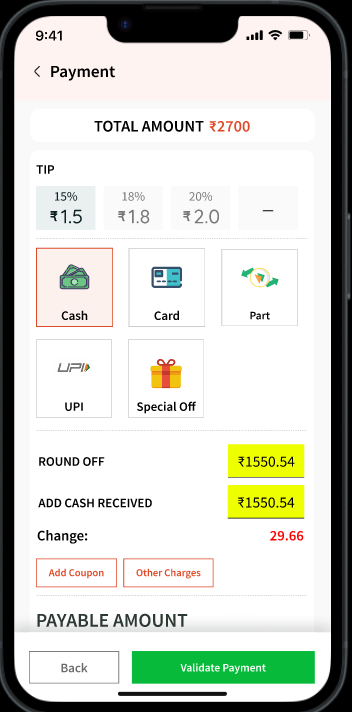
In order to charge the guest, the payments can be processed either using the Web, Windows, or the Tablet Application. Currently, we don't support payments using the Staff app. We are actively working on enhancing this feature.
You can also 'Cancel Order' that will require you to put a reason. The cancelled order, the user's ID, and the reason will showcase in the 'Order History' tab located in the Web application.